From Code to Cluster — ArgoCD GitOps for Kubernetes
What is GitOps:
Gitops is a practice in devops where managing applications using git is considered as a single source of truth. This is generally used in the Kubernetes world.
This means we define our application for kubernetes using declarative objects in our git repo and no manul modifications are allowed to do in the k8s cluster.
What’s ArgoCD:
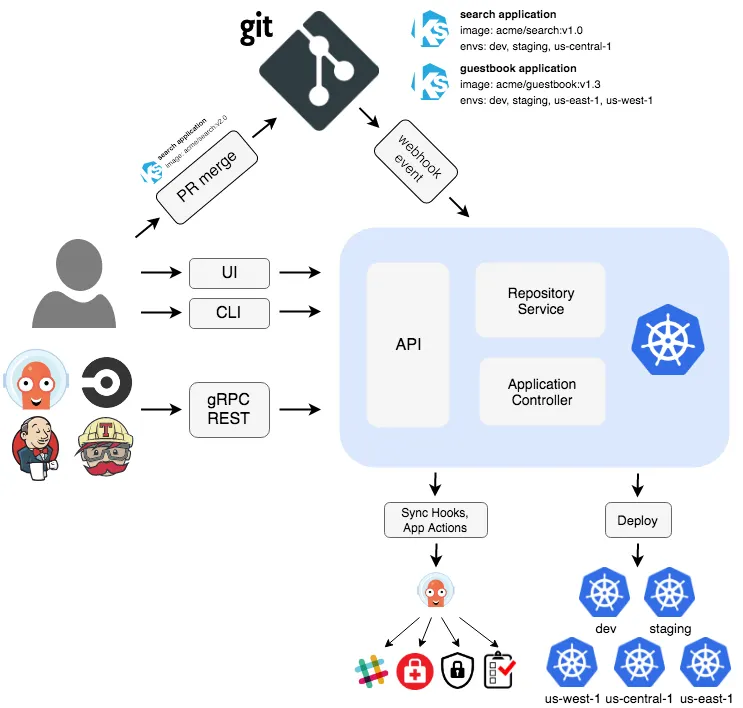
ArgoCD is an open-source tool that implements gitops. It actively monitors changes in our repo and updates the application in k8s for any desired changes. We can also configure it to discard manual changes in our cluster.
In this experiment we’ll deploy a web application using argocd.
Tools and Technologies used:
- Terraform
- Kubernetes (AKS)
- ArgoCD
- Azure VM
- Ansible
- Jenkins
- Docker
All the code and the configuration are available on github repo.

Setup AKS Cluster using Terrafom:
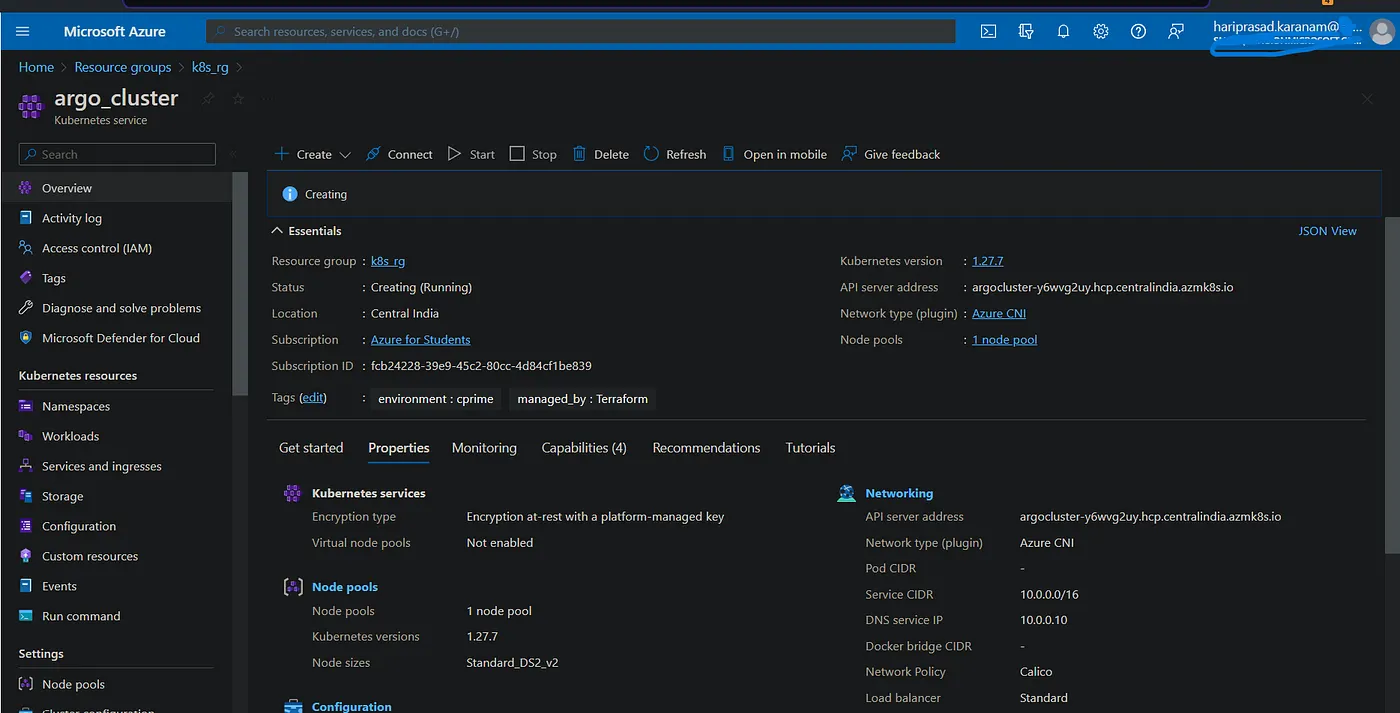
To set up terraform, follow the below article. Now create a .tf file with the below configuration and apply it to create the aks cluster.
provider "azurerm" {
  features {}
}
resource "azurerm_resource_group" "k8s_rg" {
  name     = "k8s_rg"
  location = "Central India"
}
resource "azurerm_kubernetes_cluster" "aks_cluster" {
  name                = "argo_cluster"
  location            = azurerm_resource_group.k8s_rg.location
  resource_group_name = azurerm_resource_group.k8s_rg.name
  dns_prefix          = "argocluster"
  default_node_pool {
    name       = "default"
    node_count = 1
    vm_size    = "Standard_DS2_v3"
  }
  identity {
    type = "SystemAssigned"
  }
  network_profile {
    network_plugin = "azure"
    network_policy = "calico"
  }
  tags = {
    environment = "argocd"
    managed_by  = "Terraform"
  }
}
Install ArgoCD on the cluster:
To install argocd, follow the official document.
Create a namespace first, and apply the argocd manifest.
kubectl create namespace argocd
kubectl apply -n argocd -f https://raw.githubusercontent.com/argoproj/argo-cd/stable/manifests/core-install.yaml
Expose argo svc with LB:
kubectl patch svc argocd-server -n argocd -p '{"spec": {"type": "LoadBalancer"}}'
forward argocd port to access directly
kubectl port-forward svc/argocd-server -n argocd 8080:443
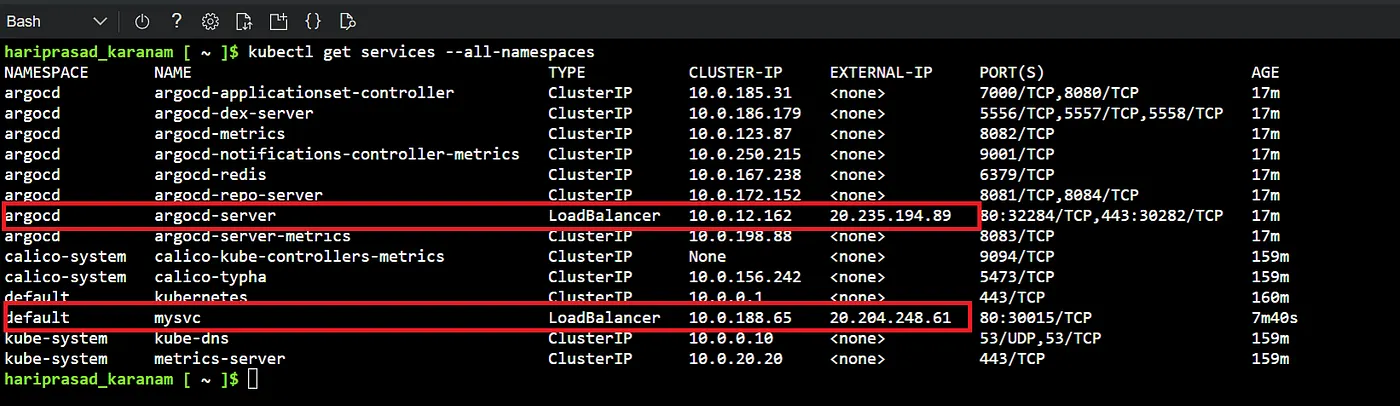
List the services in argocd namespace and browse the ip of the loadbalancer.
Note : If you get any security warnings, just click proceed anyway. This error is because we forwarded the agro port to 443 port (HTTPS ) but we haven’t used any TLS certificate.
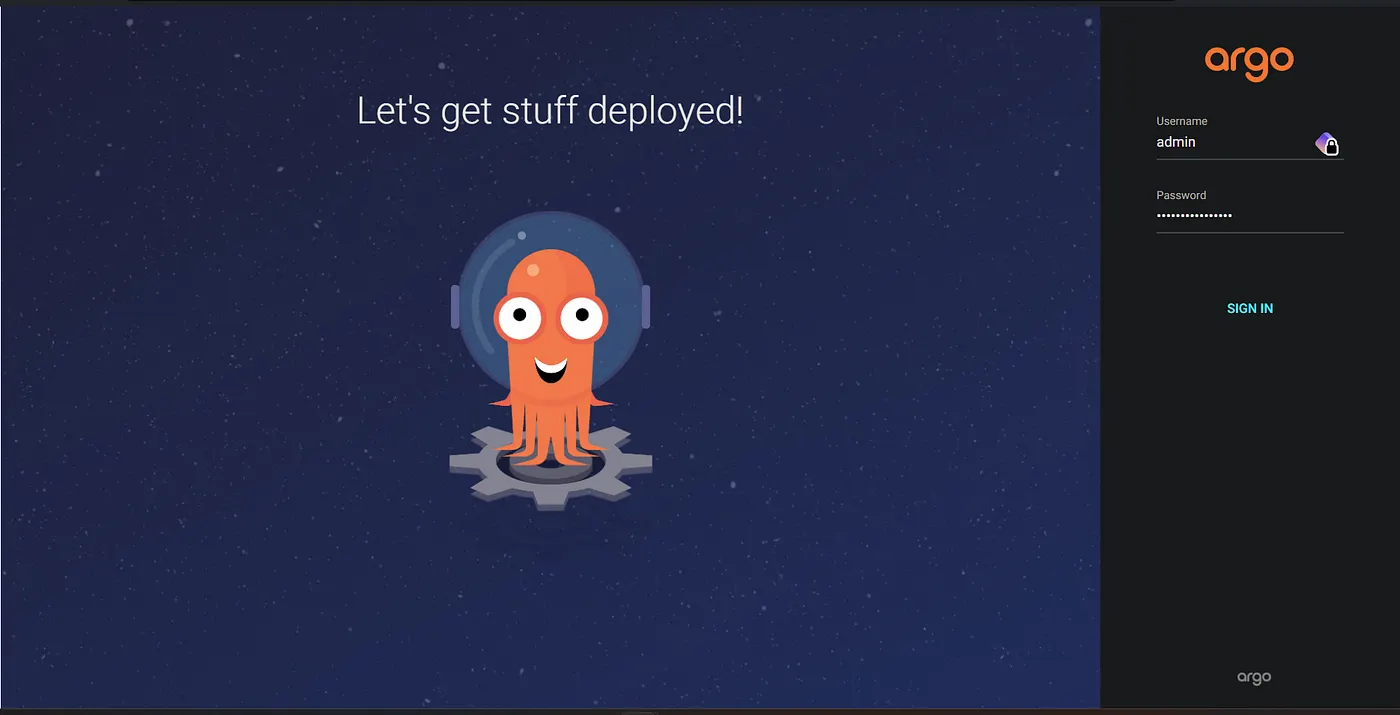
The username is admin. To get the initial pw, run the following command:
kubectl -n argocd get secret argocd-initial-admin-secret -o jsonpath="{.data.password}" | base64 -d; echo
Creating Application in ArgoCD:
To create an application we should point to our repository containing all the required manifests (deployment, services etc)
After signing in, click the + New App button → Enter the name you want for the application name → select the default value for the project.
Choose sync policy
a. Manual — we have to sync the argo app manually to have the changes deployed
b. Auto — Argo syncs the project automatically in certain intervals to check if there are any changes to the manifests in the repo.
- Enter your git repo url, keep the revision as HEAD. In the path filed, provide location of the manifests on the repo.
If the files are in the root directory or the repo, then enter just a dot.
- In the destination, select the default service and then select the namespace.
Now click on the create button. In a few mins we’ll see the application like pods, service etc details in the argo app. We can also verify the same in the cluster as well.
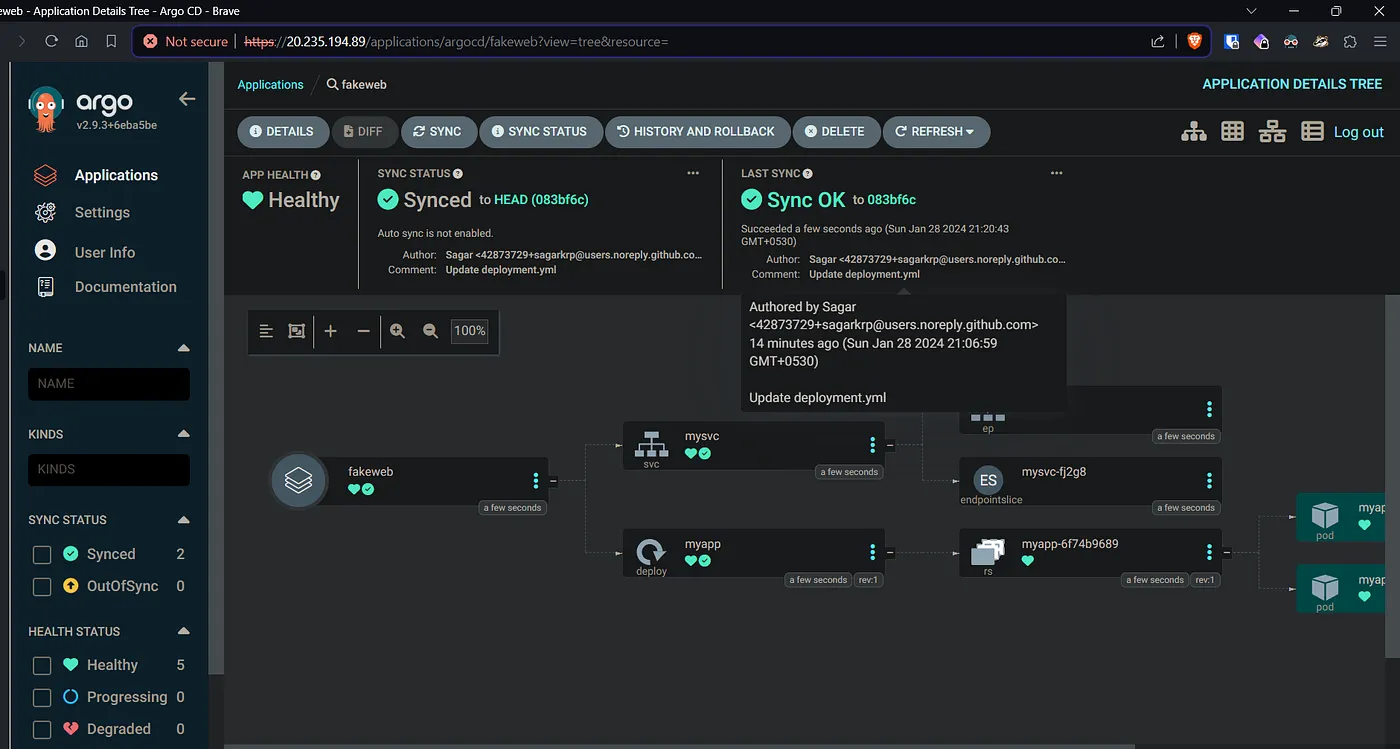
2 pods are created as per the replica configuration in the deployment.yml
Our web app:
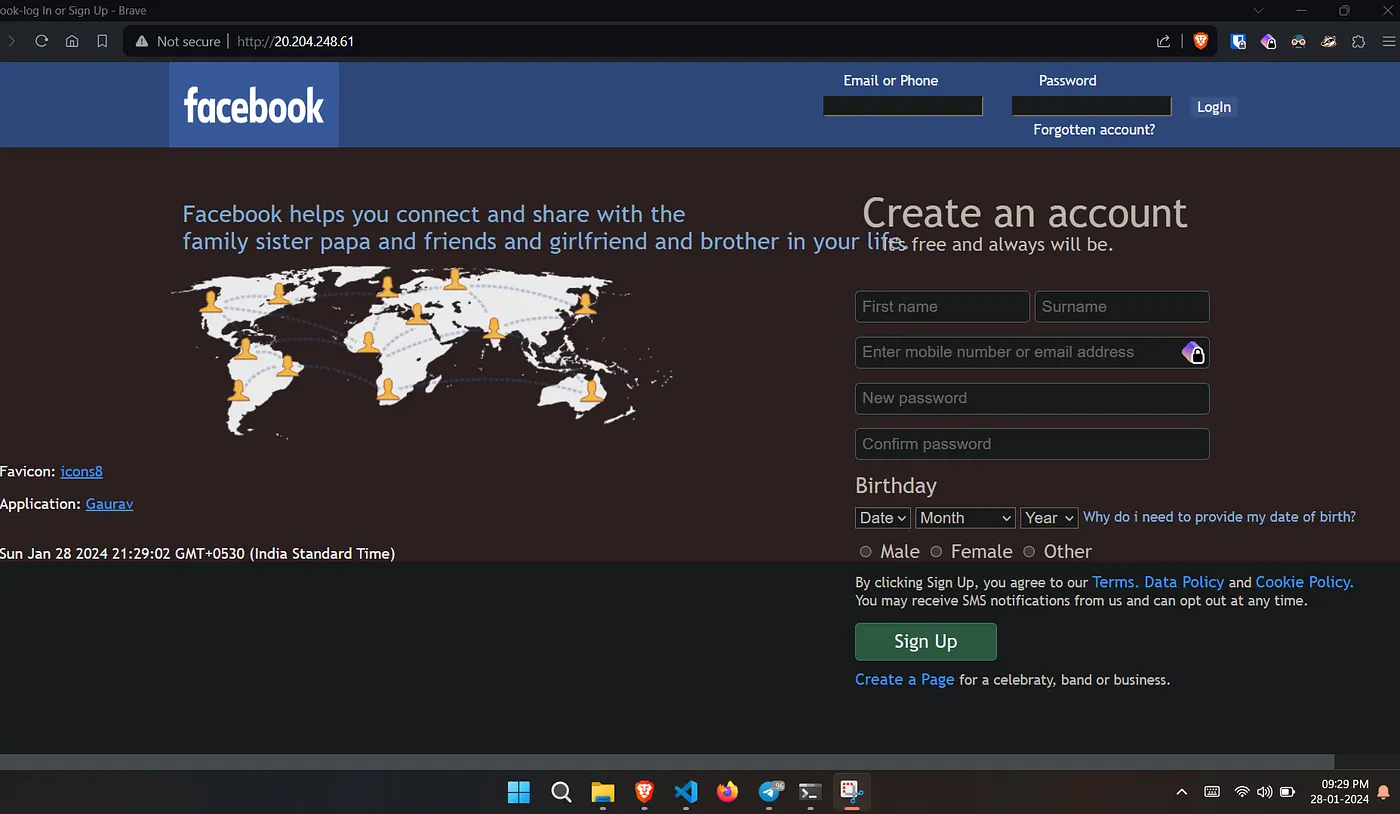
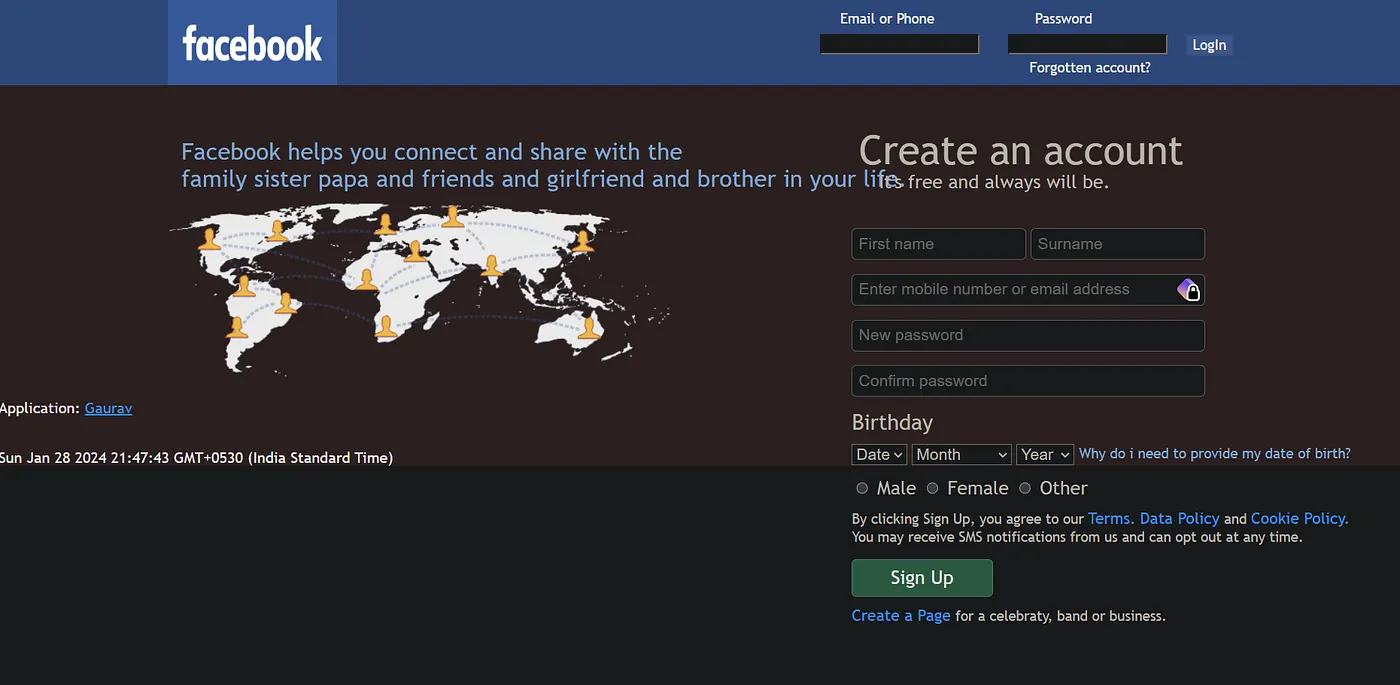
Browse the web application with the load balancer ip.
Creating VM:
We’ll create a vm and install jenkins for build and push operations for docker images.
Apply the main.tf under VM directory.
Setup Docker and Jenkins on the VM:
Since we’ll use Jenkins for docker build and push, lets install both of them using ansible.
Install Jenkins: Under the playbook directory, run the jenkins playbook first.
---
- name: Install Jenkins
  hosts: jenkins
  become: true
  gather_facts: false
  tasks:
    - name: Update apt package cache
      apt:
        update_cache: yes
    - name: Install Java
      apt:
        name: openjdk-11-jdk
        state: present
    - name: Add Jenkins repository key
      apt_key:
        url: https://pkg.jenkins.io/debian/jenkins.io.key
        state: present
    - name: Add Jenkins repository
      apt_repository:
        repo: "deb http://pkg.jenkins.io/debian-stable binary/"
        state: present
    - name: Install Jenkins
      apt:
        name: jenkins
        state: present
    - name: Start Jenkins service
      service:
        name: jenkins
        state: started
    - name: Print Jenkins initial admin password
      command: cat /var/lib/jenkins/secrets/initialAdminPassword
      register: jenkins_admin_password
      changed_when: false
      # Print the Jenkins admin password
    - name: Display Jenkins admin password
      debug:
        var: jenkins_admin_password.stdout_lines
Once the playbook has run successfully we’ll get the initial pw.
Browse ip:8080 and continue the rest of the installation as per your need.
Install Docker: Now run the docker playbook. This installs docker and adds the jenkins user to the docker group, so we can run docker commands from jenkins without sudo.
---
- name: Install Docker and add Jenkins user to Docker group
  hosts: jenkins
  become: true  # Run tasks as sudo
  vars:
    ansible_ssh_common_args: '-o StrictHostKeyChecking=no'
  tasks:
    - name: Update apt packages
      apt:
        update_cache: yes
      when: ansible_os_family == 'Debian'
    - name: Install required packages for Docker
      package:
        name: "{{ item }}"
        state: present
      loop:
        - apt-transport-https
        - ca-certificates
        - curl
        - software-properties-common
      when: ansible_os_family == 'Debian'
    - name: Add Docker GPG key
      apt_key:
        url: https://download.docker.com/linux/ubuntu/gpg
      when: ansible_os_family == 'Debian'
    - name: Add Docker repository
      apt_repository:
        repo: "deb [arch=amd64] https://download.docker.com/linux/ubuntu {{ ansible_lsb.codename }} stable"
      when: ansible_os_family == 'Debian'
    - name: Update apt packages
      apt:
        update_cache: yes
      when: ansible_os_family == 'Debian'
    - name: Install Docker
      apt:
        name: docker-ce
        state: present
      when: ansible_os_family == 'Debian'
    - name: Add user jenkins to docker group
      user:
        name: jenkins
        groups: docker
        append: yes
Sync Changes:
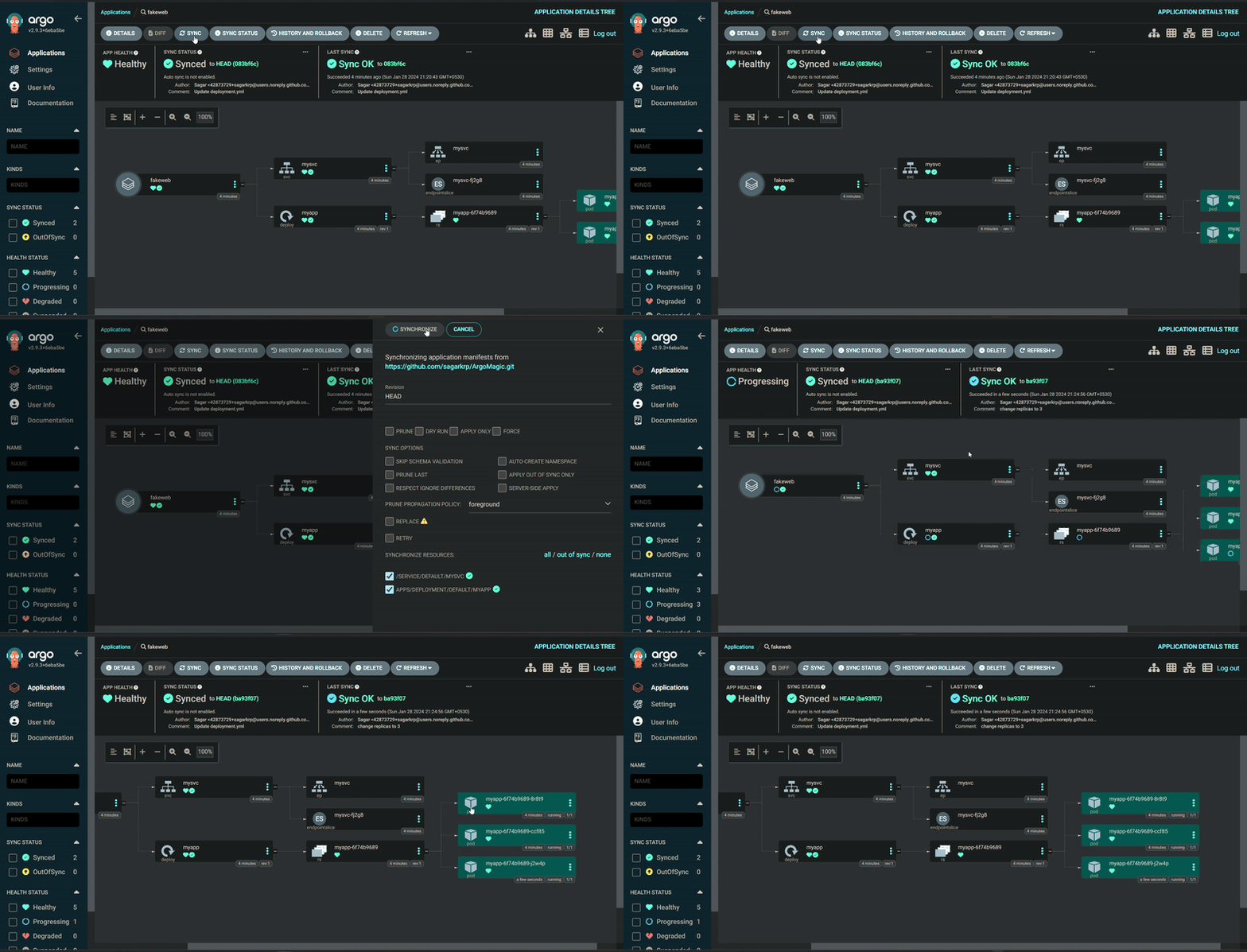
The initial replica count was set to 2. Update the replica count and sync the argo app, we’ll see the number of pods increase to 3.
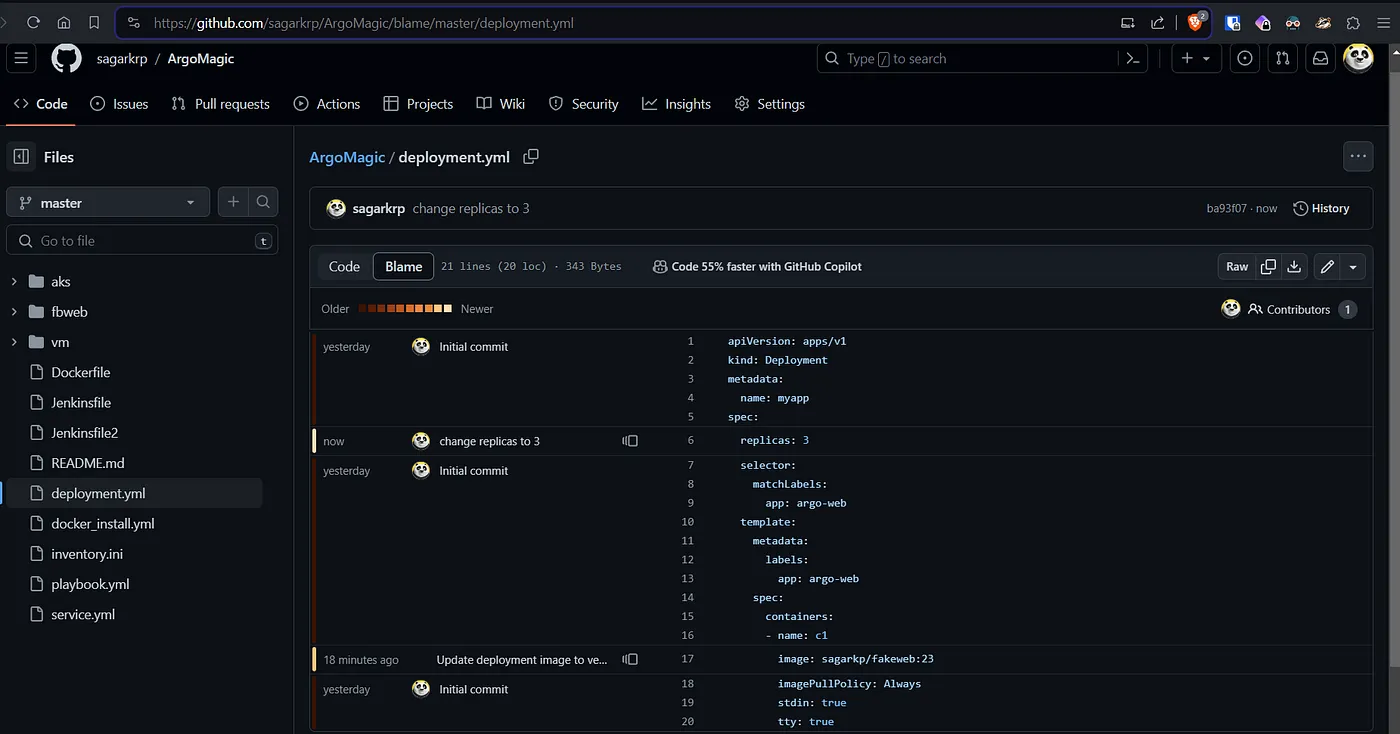
Now sync the argo app as I have set the sync policy to be manual.
Jenkins for docker image CI/CD :
The jenkins setup has been completed in eariler setup with docker installed.
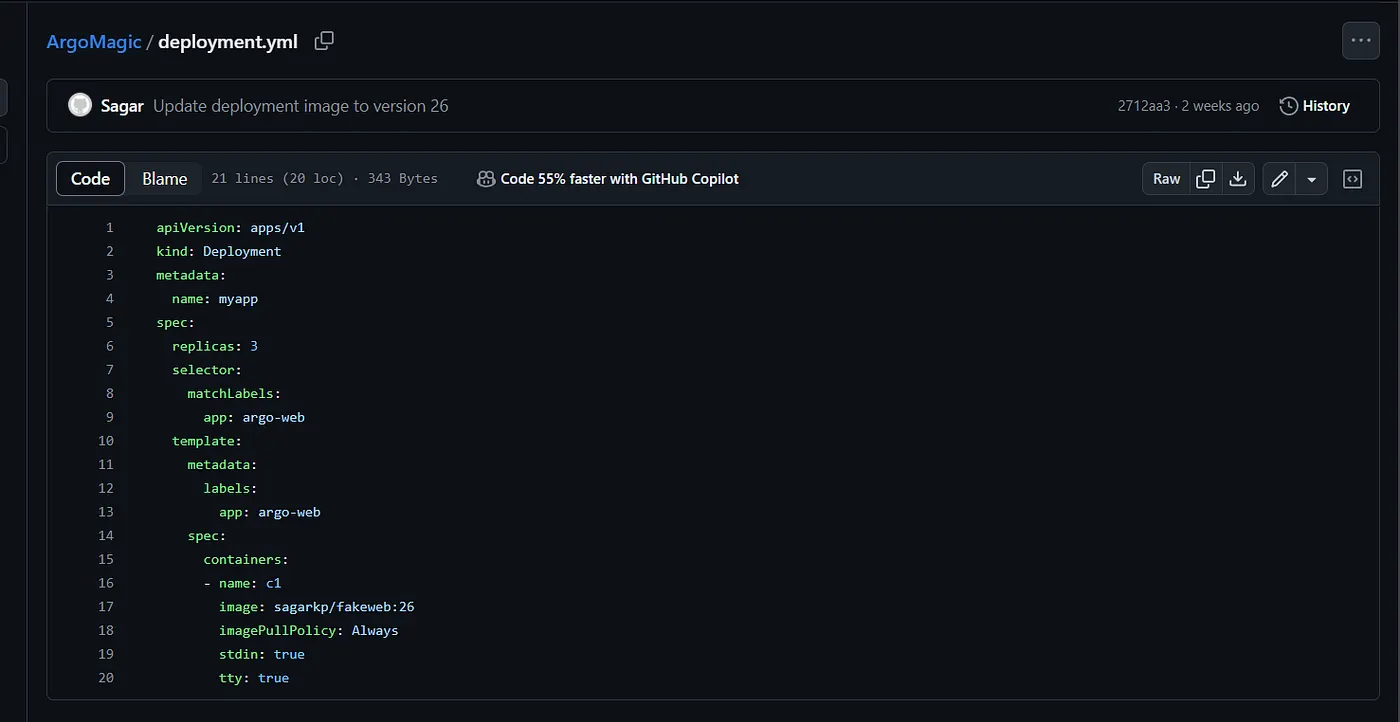
Now we can build and push the docker images to any preferred repo. Also since this repo is being used for argo to sync the chnages, we need to update the image tag in deployment as we update the image in docker repo.
You’ll need docker login in the VM to be able to push image with jenkins.
 stage('Update Deployment File') {
        environment {
            GIT_REPO_NAME = "ArgoMagic"
            GIT_USER_NAME = "<your github/gitlab username>"
        }
        steps {
            withCredentials([string(credentialsId: 'git_creds', variable: 'GITHUB_TOKEN')]) {
                sh '''
                    git config user.email "$GIT_EMAIL"
                    git config user.name "Sagar"
                    BUILD_NUMBER=${BUILD_NUMBER}
                    sed -i "s|image: sagarkp/fakeweb:.*|image: sagarkp/fakeweb:${BUILD_NUMBER} |" deployment.yml
                    git add deployment.yml
                    git commit -m "Update deployment image to version ${BUILD_NUMBER}"
                    git push @github.com/${GIT_USER_NAME}/${GIT_REPO_NAME">https://${GITHUB_TOKEN}@github.com/${GIT_USER_NAME}/${GIT_REPO_NAME} HEAD:master
                '''
            }
        }
    }
Alright, so the flow goes like this, we do any changes in the app, jenkins triggers (either webhook or poll scm or manual) builds and pushes the image to docker hub with a tag of the build number.
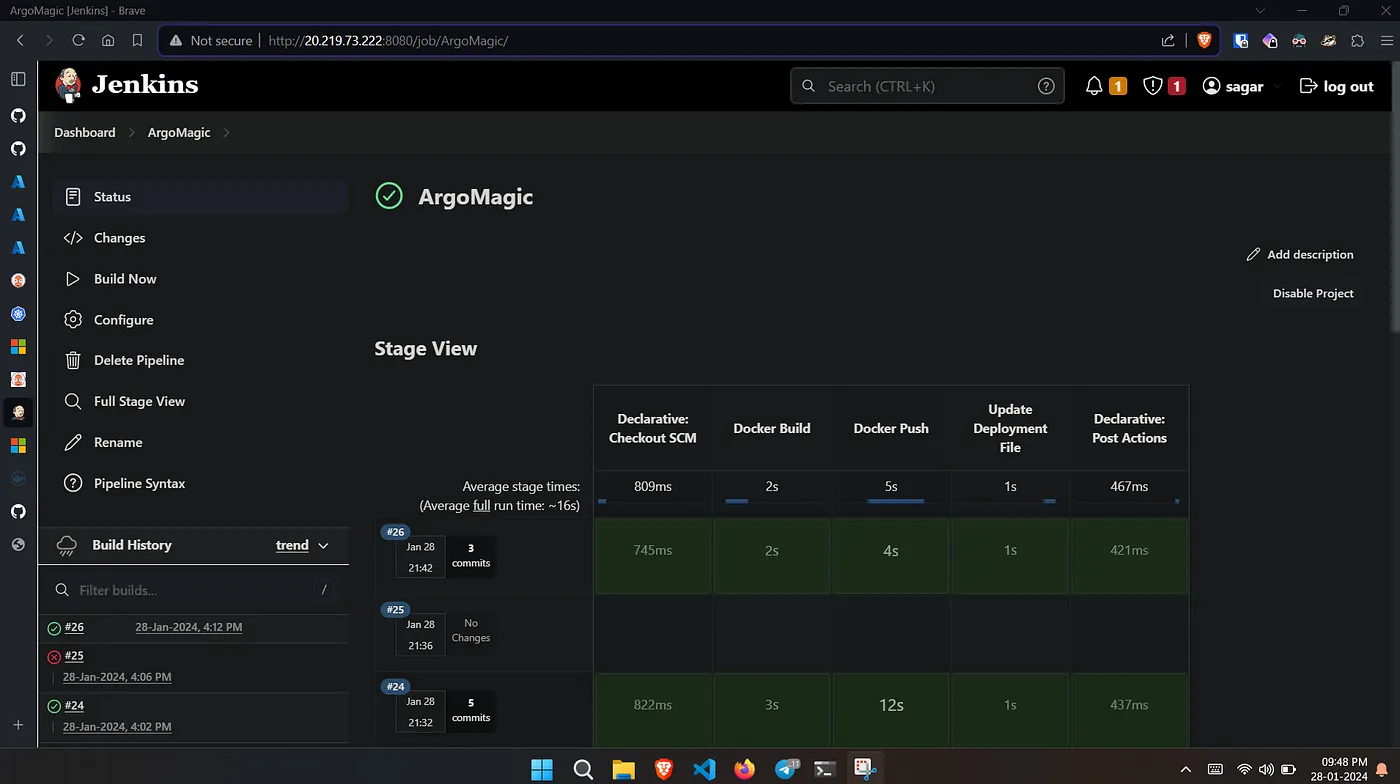
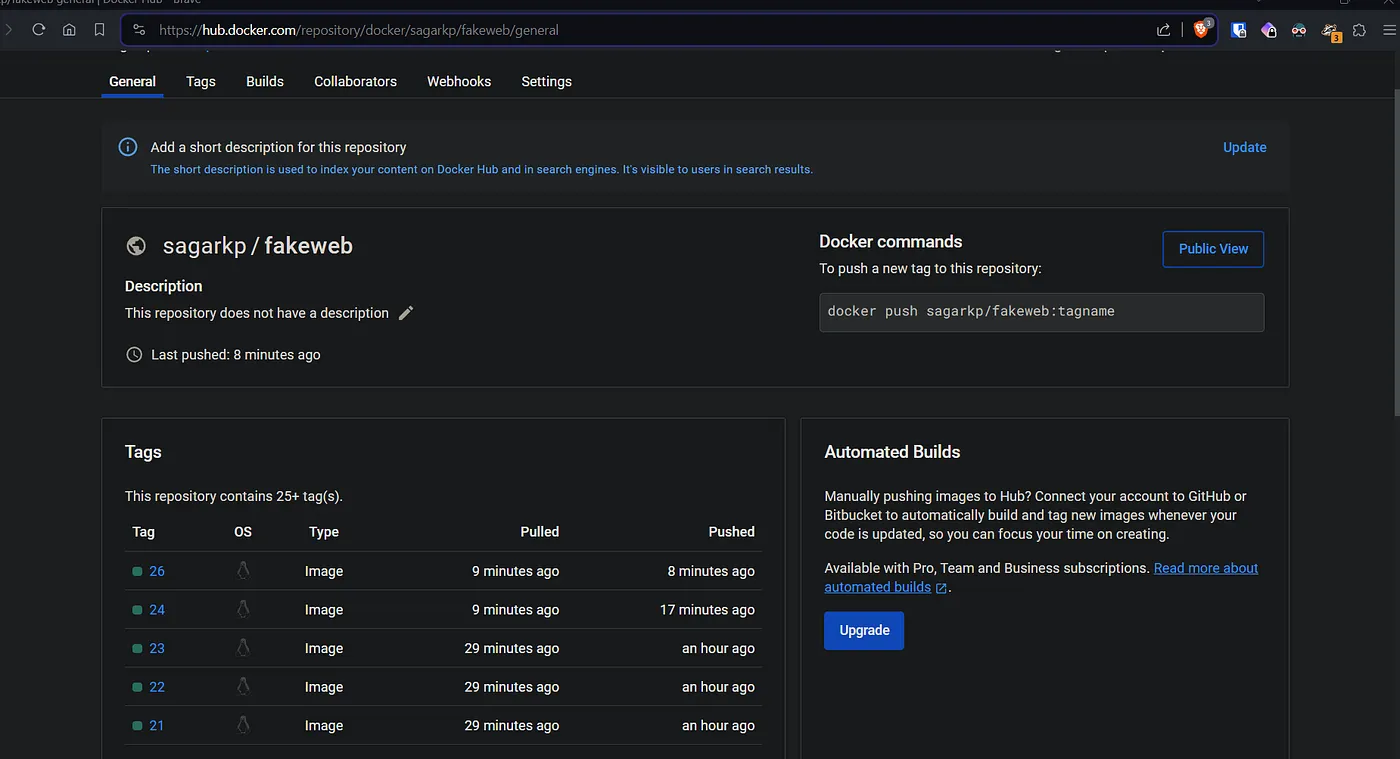
Jenkins then writes the deployment.yml with the build number as tag and pushes to the repo.
Note: In case you have set up webhook or scm poll for jenkins, then you have to ignore commits by jenkins, else jenkins triggers and pushes changes to repo and that again triggers jenkins build. This cycle keeps going.
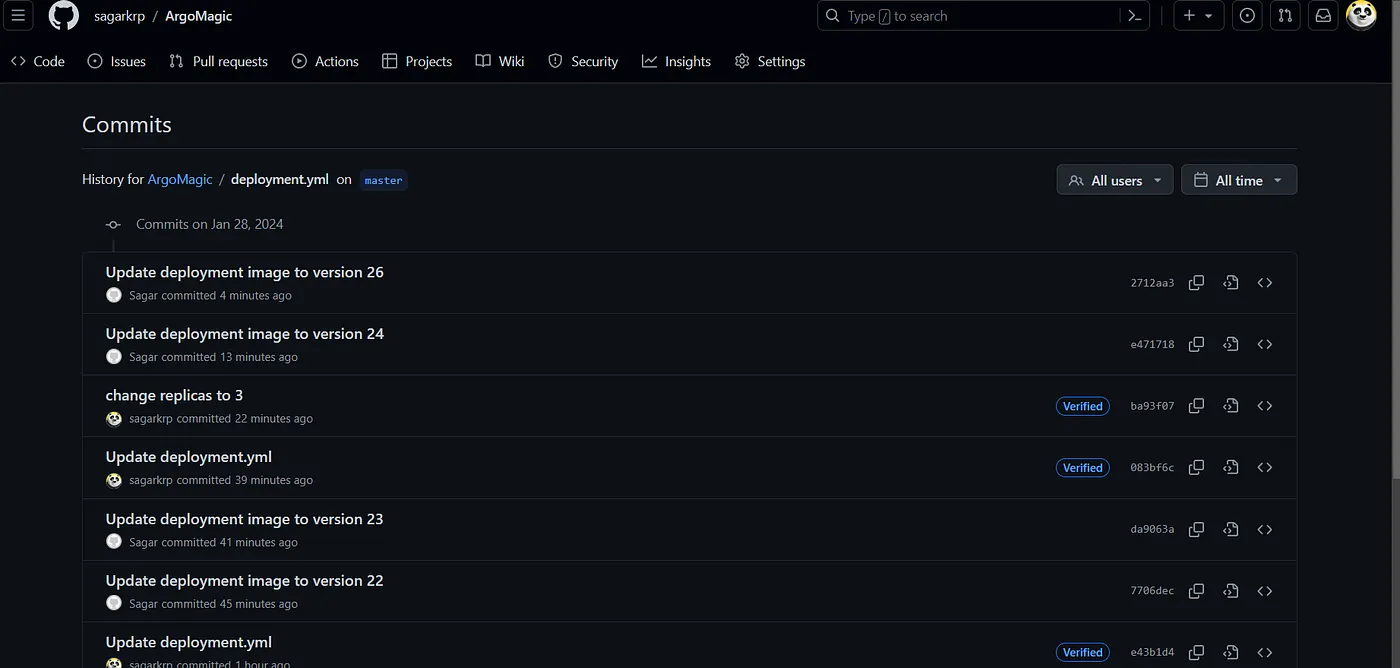
Now we need to sync argo app to update the changes in deployment.yml
Lets see that. The first app deployment has two footers, 1 of them is favicon: icons8.
Now when we remove the same footer, jenkins builds and pushes the docker image with build number 26, image tag updated to 26 in the deployment.yml.
To update our app with latest image pull, we sync the argo app again. Once the sync is completed, we’ll see the changes being reflected on our deployed and running application.
The end:
There we have it, GitOps CD using Argo.
For further experiments
- Try installing argo with helm or ansible or with terraform while setting up the cluster.
- Create the application using yaml config instead of argo GUI. Also make argo discard any manual changes to the cluster.
- Include trivy scan for docker image
- Integrate sonarqube with jenkins for static analysis.
Thanks for reading.
Read more on K8s:
References: ArgoCD docs, Red Hat, DigitalOcean