

Introduction
Role-Based Access Control (RBAC) is a method used in computer security to manage access to resources within a system.
RBAC in k8s is based on the principle. There are various terminologies such as users, service account, role, role binding and etc.
RBAC policies can be assigned to define access for users or human users in k8s and also for users in the services such as pods using service accounts. While user accounts are global, service ac (sa) are limited to the namespace they are created.
When we create any namespace a default sa is created without any permission. If we don’t mention a service ac while creating a resource, the default sa ac is assigned to it.
kctl get sa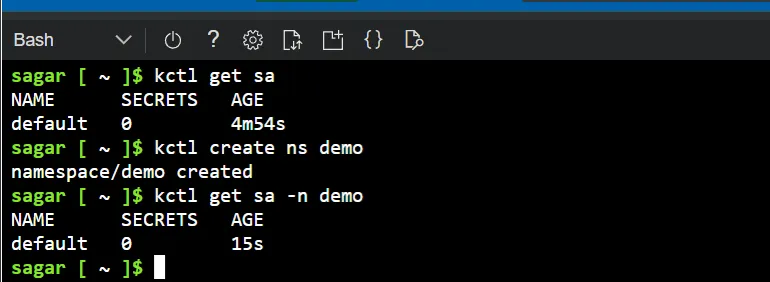
Lets first focus on user management.
Note: When we connect to the cluster using the two commands from the connect button, a file is created under our home dir with

Similarly the master node also has the certificates stored under /etc/kubernetes/pki which we can’t access in managed cluster.
We can’t create users in our clusters. It is managed by third party identity providers such as MS AD, okta, O auth, AWS IAM and etc.
In this experiment as the cluster is on azure, we can use AD without much hassle.
Manage users with AD
Search for Active directory (now Entra ID) and go to users.
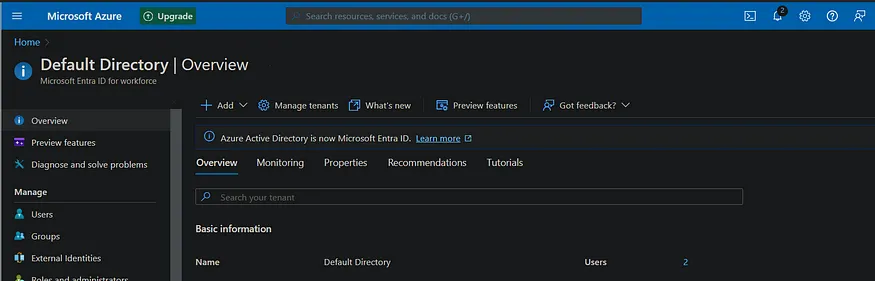
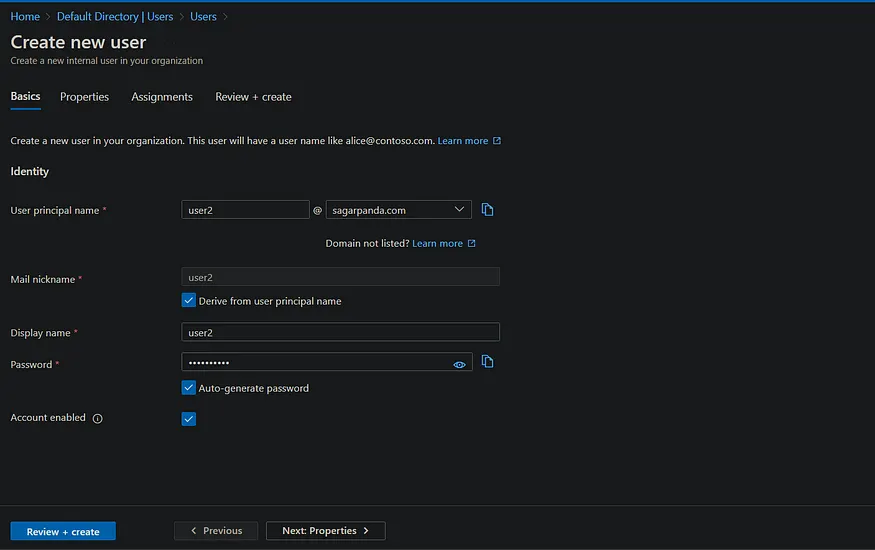
To create a new user, click on the new add user and fill out the details. Copy the password if you select auto generate pw. This is a temp pw will be used for the first login and you’ll update it.
Note: It shows my domain as I have added it here. In case you dont have any custom domain, you will see user@email.onmicrosoft.com
Similarly you can create a group and add multiple users. All the users in a group will have the same permissions.
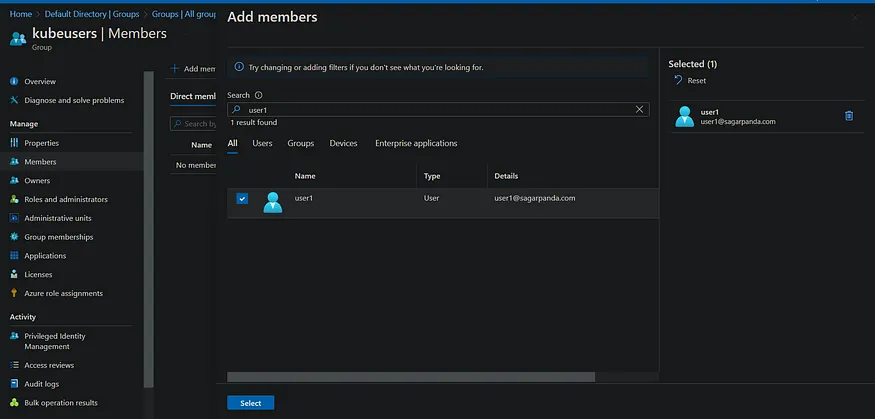
Here kubeuser is the group and I have added user1 that was created earlier.
Associate AD with cluster
Now that we have users and group setup, lets assign the Azure AD to our cluster so it can provide authentication for our cluster.
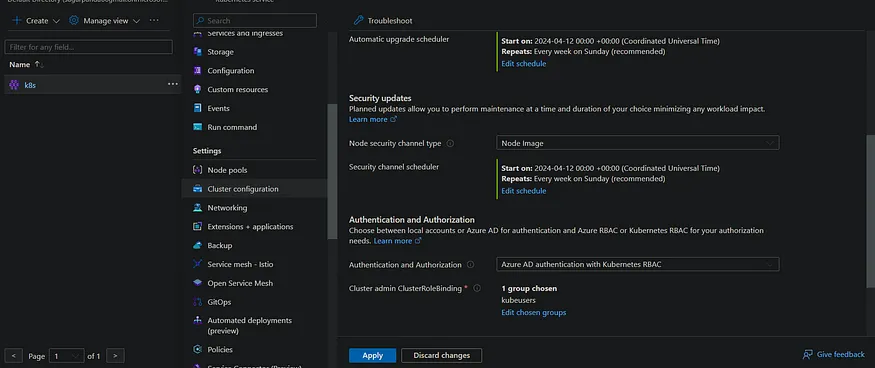
You can also select this AD association process while creating the cluster.
While adding the AD to the cluster, choose a group. The users in this group have full access.
We can now test the new user logon and test RBAC with AAD. I have 2 users, “user1” and “user2” apart from the default user. Only user1 is part of the group “kubeuser”.

Now as the users login to the aks cluster, it asks to login to auth via a web sign in with an OTP.

User1 can access all pods because its part of the the kubeuser group, which has admin access, however user2 can not.

Command to check if the user has certain permissions.
get, list, create etc are called verbs, basically a particular access.
kctl auth can-i <verb> <resourece type>
kubectl auth can-i get pods --as <username> # check for other userRole and RoleBinding
Role is a set of permissions definitions and Rolebinding is the process of assigning the role to a user.
In this example, User2 can’t access anything, but we want to provide access to it to list resources.
To create role and assign permission to the user2, login with user1 and create role and role binding.
kubectl create role example-role --verb=get,list,watch --resource=pods --namespace=default
kubectl create rolebinding example-role-binding --role=example-role --group=group1@example.com --namespace=defaultor use yaml.
#role.yml
apiVersion: rbac.authorization.k8s.io/v1
kind: Role
metadata:
  name: readrole
  namespace: default
rules:
- apiGroups: [""]
  resources: ["pods", "services"]
  verbs: ["get", "list", "watch"]
--------------------------------------------
#rolebind.yml
apiVersion: rbac.authorization.k8s.io/v1
kind: RoleBinding
metadata:
  name: demorole-binding
  namespace: default
subjects:
- kind: User # set to Groups for role assigning toa group
  name: "user2@sagarpanda.com"  # Replace with your Azure AD user email
  apiGroup: rbac.authorization.k8s.io
roleRef:
  kind: Role
  name: readrole
  apiGroup: rbac.authorization.k8s.io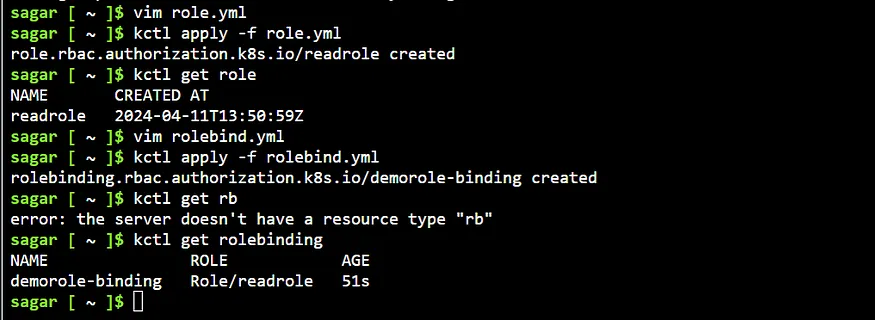
The user2 should now be able to list pods and services.
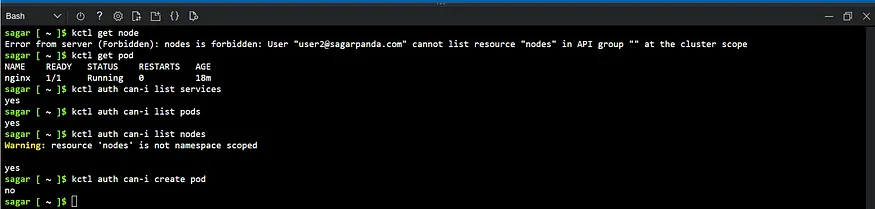
user2 unable to list nodes even if you assign it.
Note: Don’t get confused with the shell user as I m using the same shell to login all users. I delete the .kube/config and do the set and get again. Generally when different users use their own ac, they don’t need to do this..
Role and RoleBindings are namespace specific, so even with all the permissions to a user, the user can’t list nodes, pvc etc as they are global.
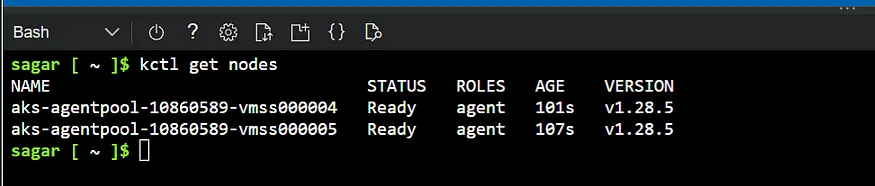
User1 able to see node
To know which resources are global, we can use the below command.
kctl api-resources --namespaced=true # to list namespace spefic resources
# similarly =false for global resources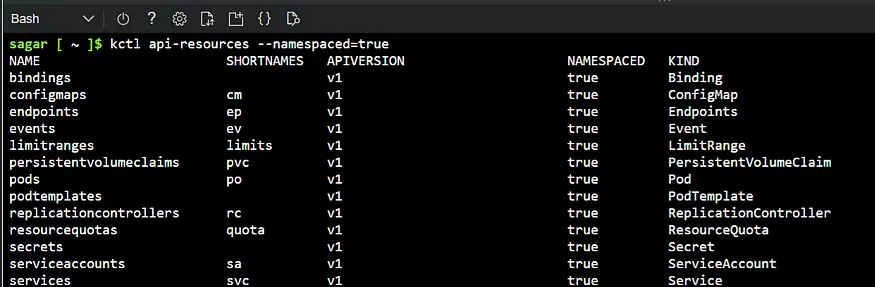
Cluster Role and Cluster Role Binding
They have the same purpose except the difference being, the permission are not limited to a namespace.
Note: There are a few default clusterroles.
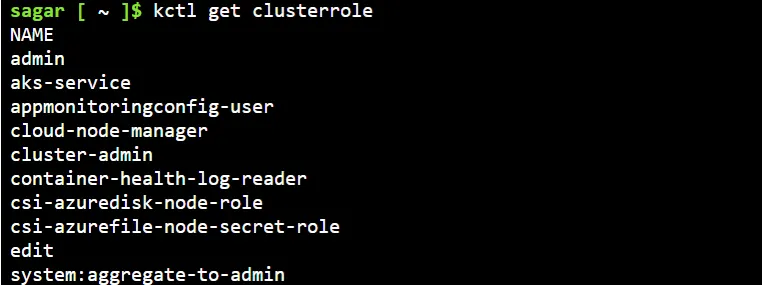
Skipping this as this is same as doing above.
> To create clusterrole:
kubectl create clusterrole <clusterrolename> --verb=get,list --resource=pods

> To create clusterrolebinding for user:
kubectl create clusterrolebinding <name> --clusterrole=<clusterrolename> --user=<username>

> To create clusterrolebinding for sa:
kubectl create clusterrolebinding <name> --clusterrole=<clusterrolename> --serviceaccount=<nsname>:<saname>

>To give admin access:
kubectl create clusterrolebinding <name> --clusterrole=cluster-admin --user=<username>That’s all for today. Thanks for reading.
References: Sysdig