Essential Linux Terminal Hacks for Efficiency
Introduction:
In the labyrinth of Linux commands, managing tasks can be daunting. Fear not! Here are some handy tips and tricks up your sleeve to streamline your day-to-day operations, making every task a breeze
1. Clearing terminal:
Use Ctrl + L to clean the terminal instead of typing clear every time.

2. Tab auto complete cmds:
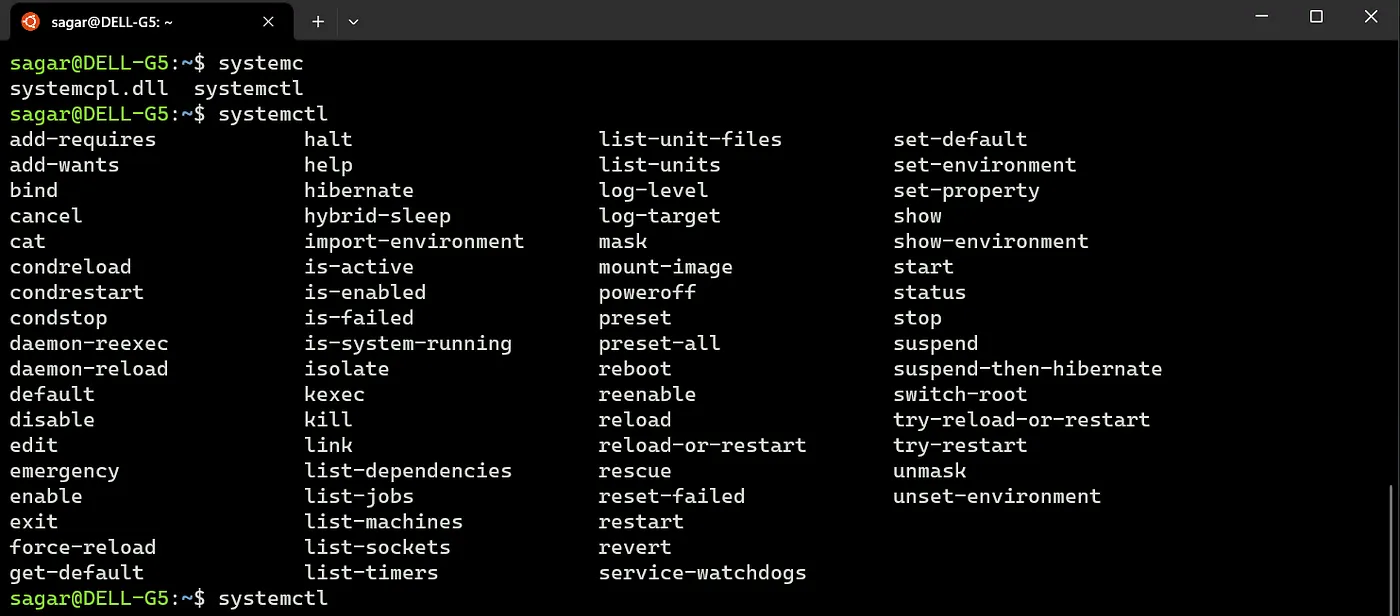
Most of us are aware of tab completion for folders and files, but the same works for commands as well.
3. Alias:
Alias is a short command that we can set (a few are set by default).
eg: set the word “u”, for sudo apt update.
alias u="sudo apt update"
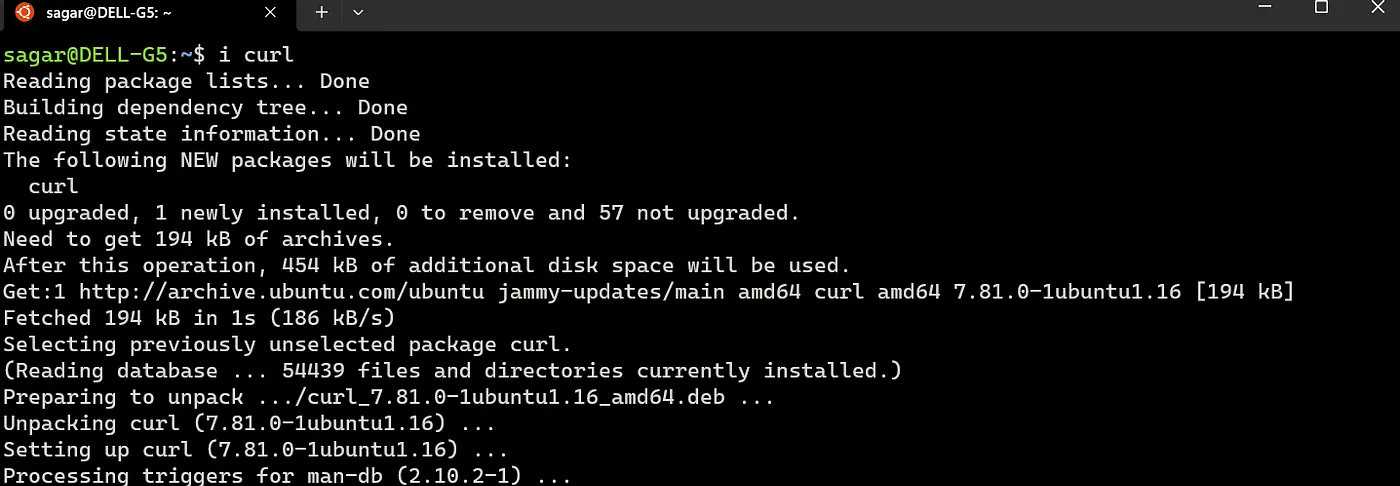
alias i='sudo apt install"
Now use i to install a package. or u to update repo cache.
Note: To set aliases permanently add them in .bashrc.
Open .bashrc with any editor, and add them to the last line. Save, exit and reload bash with “source .bashrc”.

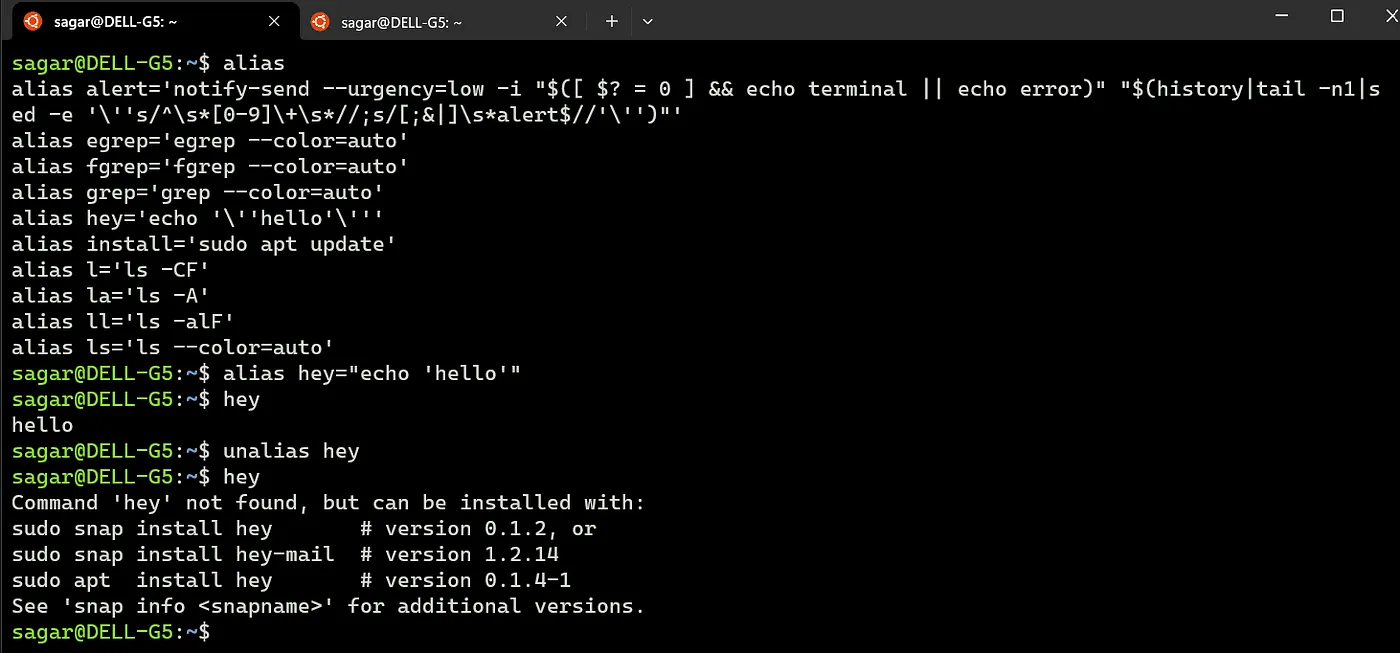
There are several built-in aliases, such as ll is alias for ls -la and etc. To list all, just use alias w/o any other options.
Remove an alias set using cmd with unalias
4. Navigate the commands:
Assume you have typed a long command but forgot to add something at the beginning or at somewhere near to start of the command.
Instead of scrolling all the way, just use Ctrl A. Similarly Ctrl E goes to the end of the line, Ctrl U removes the cmd text prior to the cursor position.
Ctrl W removes one word before the cursor, Ctrl F to move the cursor forward and Ctrl B to move it backwards.
5. cd ~ vs cd — :
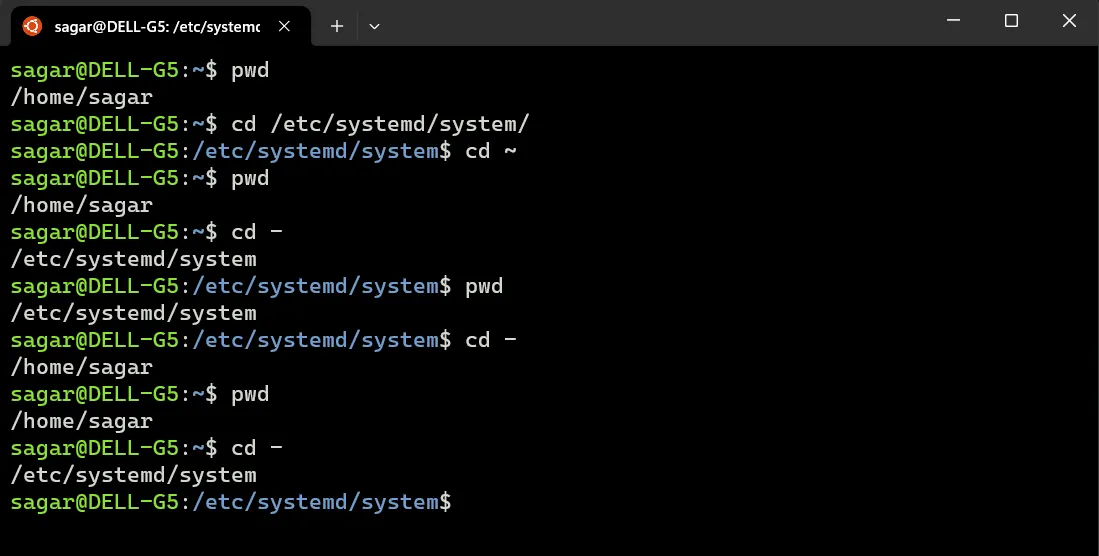
the cd (without ~) or cd with ~ (tilde represents home dir) brings you to the home dir from anywhere.
“cd — ” however switches to the previous dir we were in.
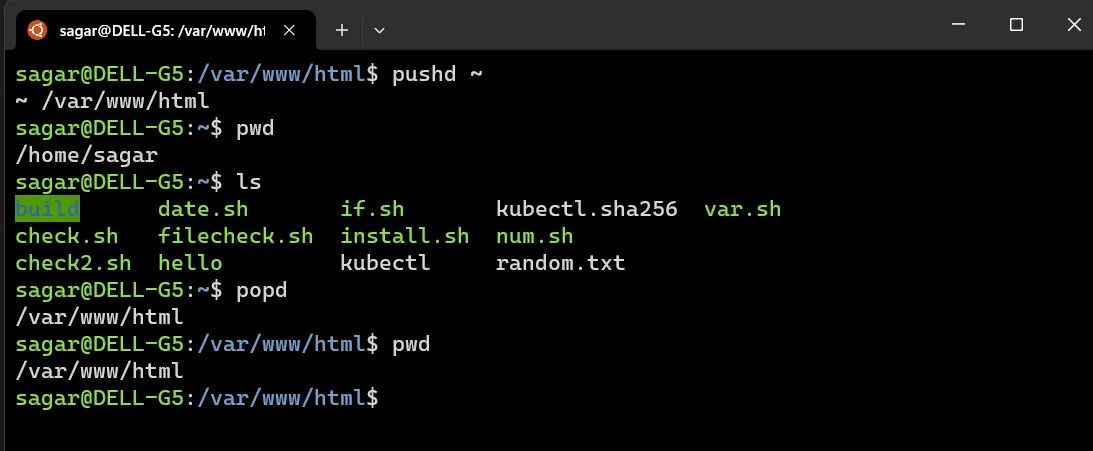
6. pushd and popd:
When you use “pushd /path/", you switch the current directory to “/path/”, while also saving the previous directory onto the directory stack. Then, when you use popd, it removes the top directory from the stack and changes the current directory back to it.”
7. hostnamectl:
Change hostname for easy identification of machine.
hostnamctl set-hostname <name>
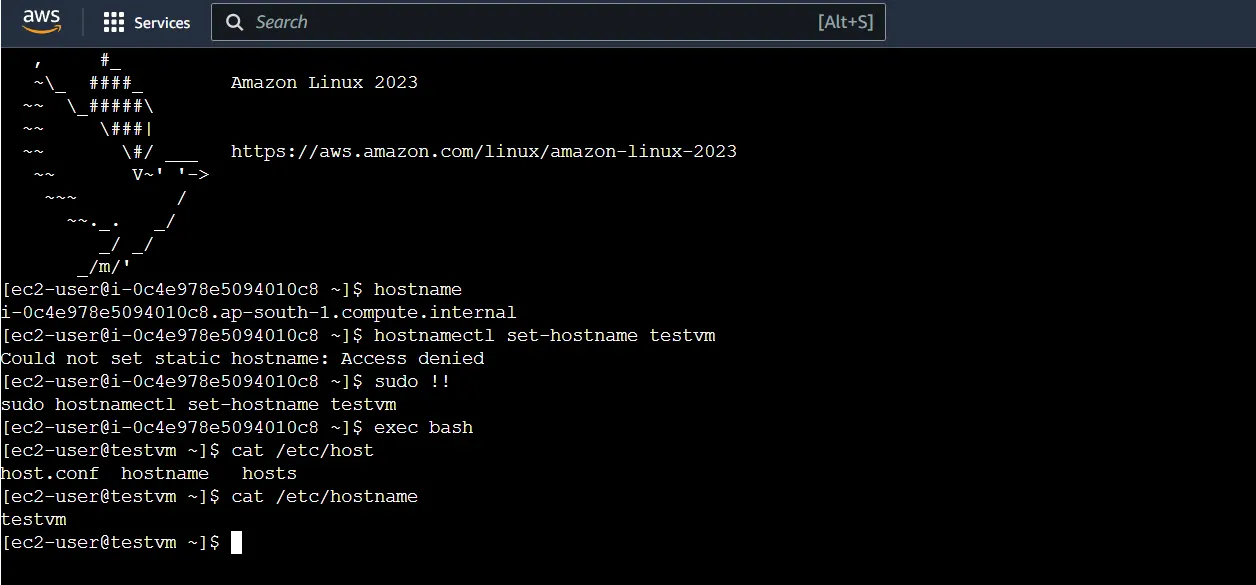
You can also set your domain name as hostname.
8. Get Public IP:
Get public ip using ifconfig.me
curl ifconfig.me

9. Re run the previous command:
Similar to point 3, but you don’t necessarily need to go back to the start (Use those shortcuts for modification in the middle or towards the end).
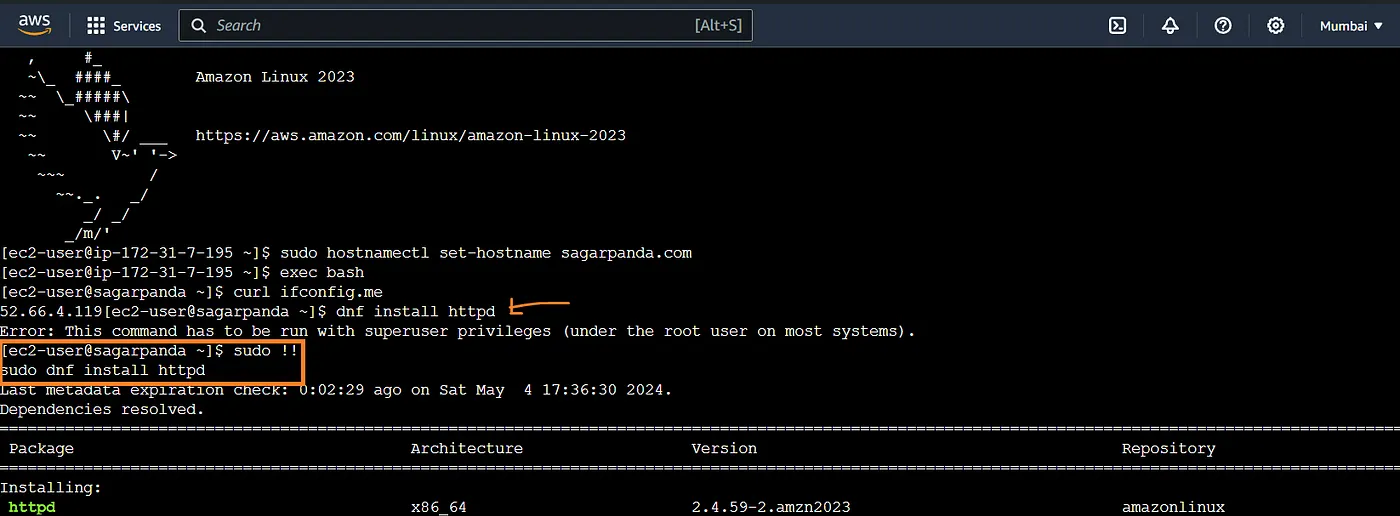
We can re run the previous command using !! with the left out commands.
$ systemctl stop httpd
$ sudo !!
10. Re run the previous command arg:
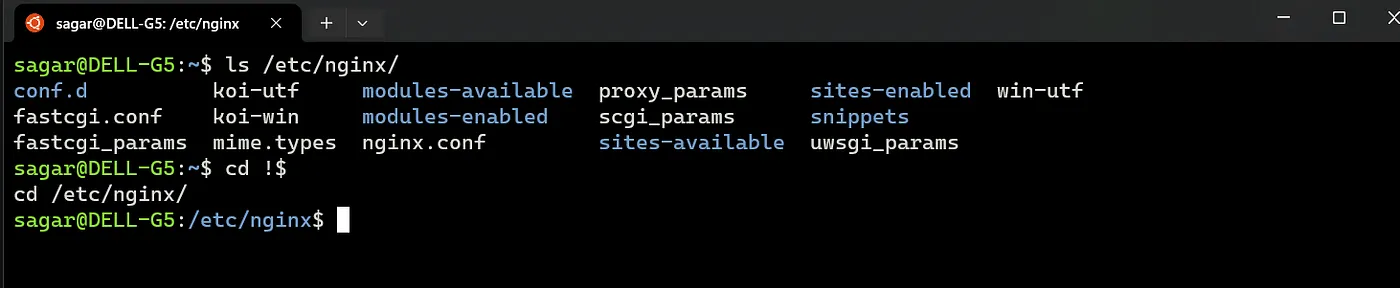
Say you did ls on a directory, but you realised, you wanted to switch to it instead.
$ commad <args>
$ 2nd command !$
11. background and foreground task:
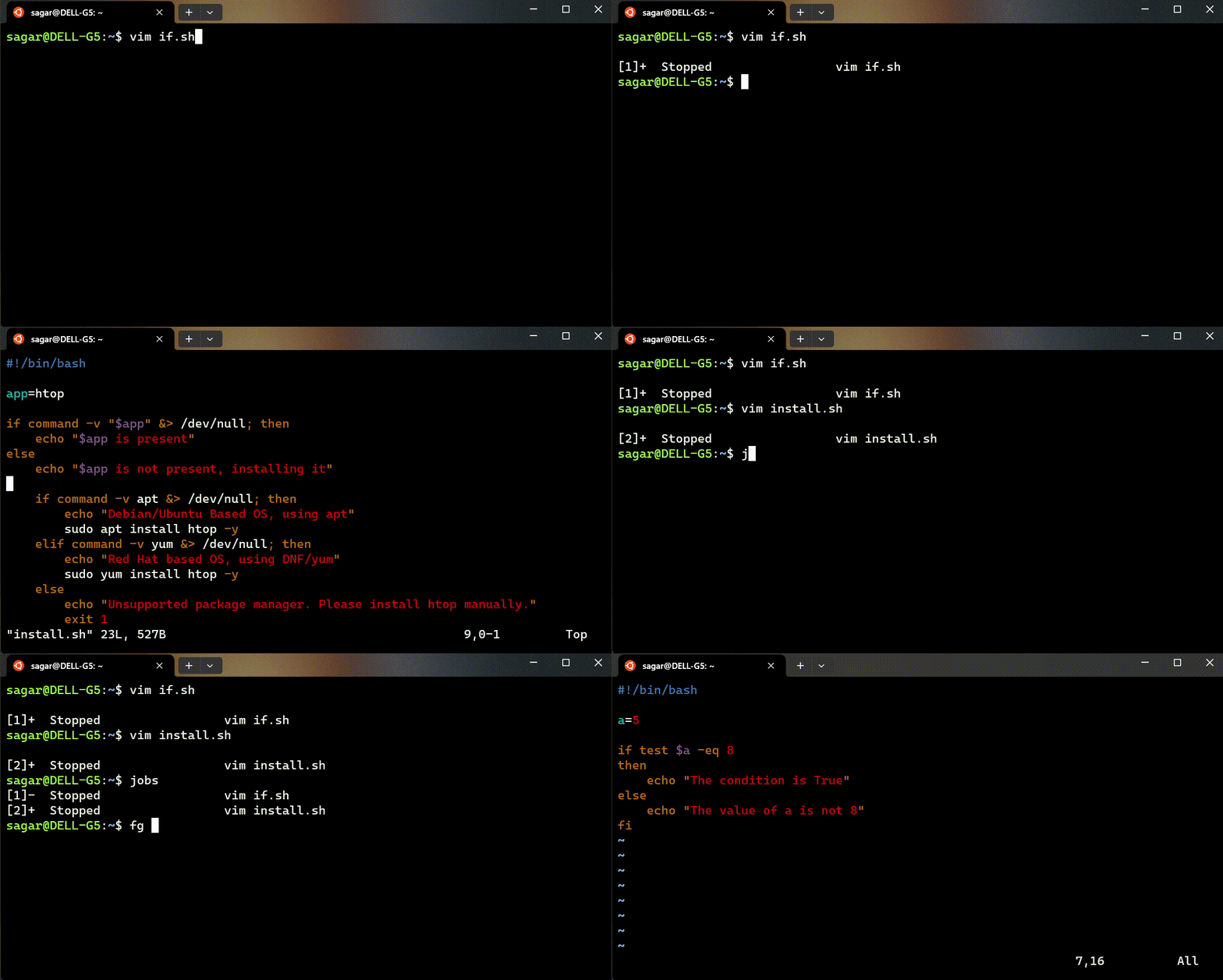
If you’re editing a file and need to do something else in the terminal, use Ctrl+Z to suspend the task. Then, handle your other tasks and resume the editing with fg. This method isn’t specific to any editor and works with various applications.
12. Man page and help:
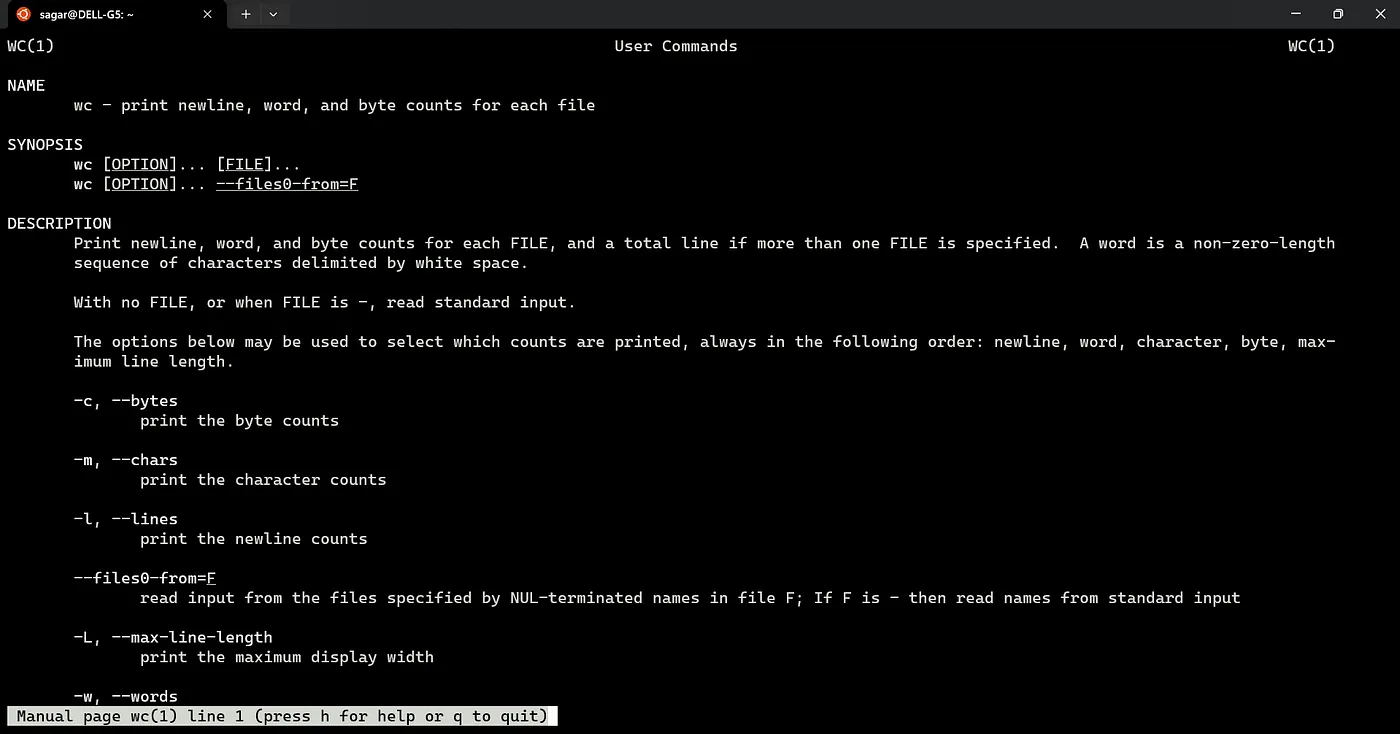
No need to remember all the details for a cmd. Use the below to retrieve them.
- man : for info about utilities and programs.
- help : for quick info about built-in shell cmds
man wc
help cd
13. Ctrl Q:
Used Ctrl S to save our changes? In terminal this key combination freezes the terminal. To unfreeze use ctrl q.
14. Font Management
To increase the terminal font size use Ctrl and + button, to reduce it, use Ctrl and — button.
Next up:
Part 2:
Essential Linux Terminal Hacks for Efficiency — Part 2
