1. Reverse search cmds:
To reuse a command, use Ctrl + R and type a few matching keywords to see the recently used cmds being shown up. The search is based on the command history.

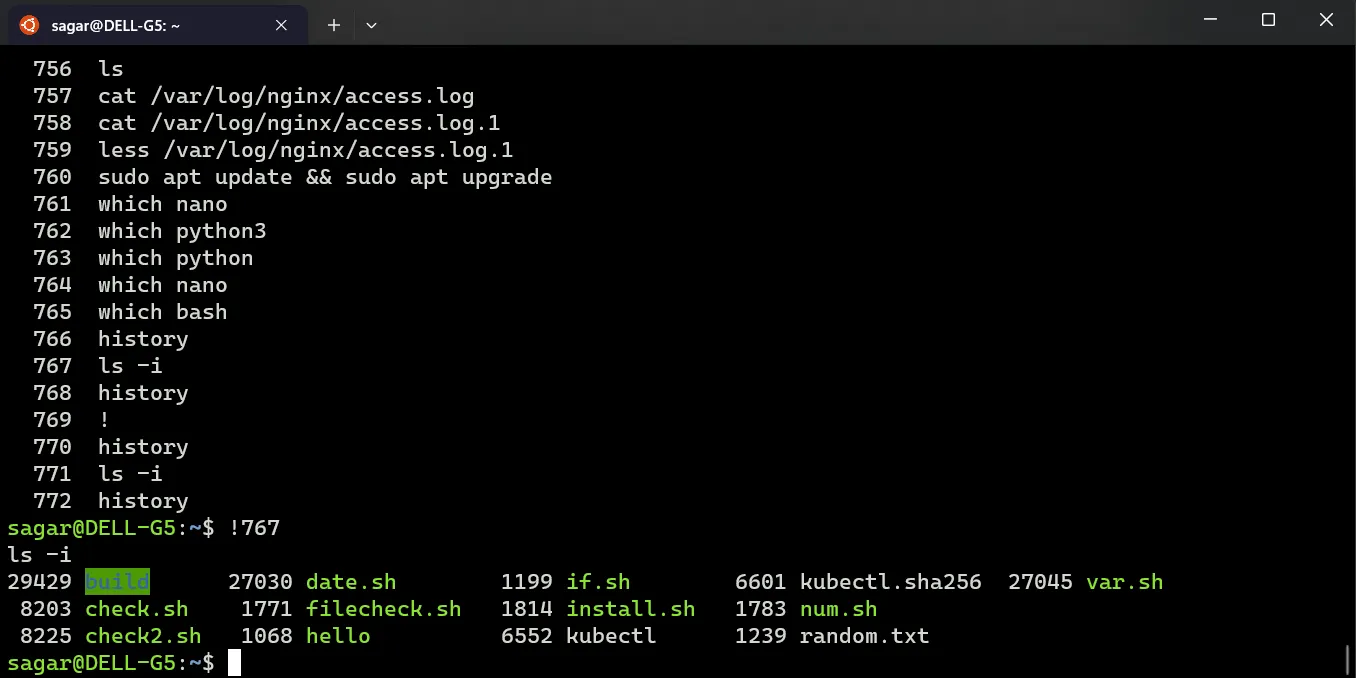
2. Use particular cmd from history
Use history cmd to list all the previous cmds used, and use “!
3. Show Date and time in History:
To view date and time on command history, use HISTTIMEFORMAT and choose how you want the date to be displayed.
HISTTIMEFORMAT="%d-%m-%y %r " history
%d – Day
%m – Month
%y – Year
%T / %r – Time in 24/12 hours format
Set it permanently, add in .bashrc
export HISTTIMEFORMAT="%d-%m-%y %r "
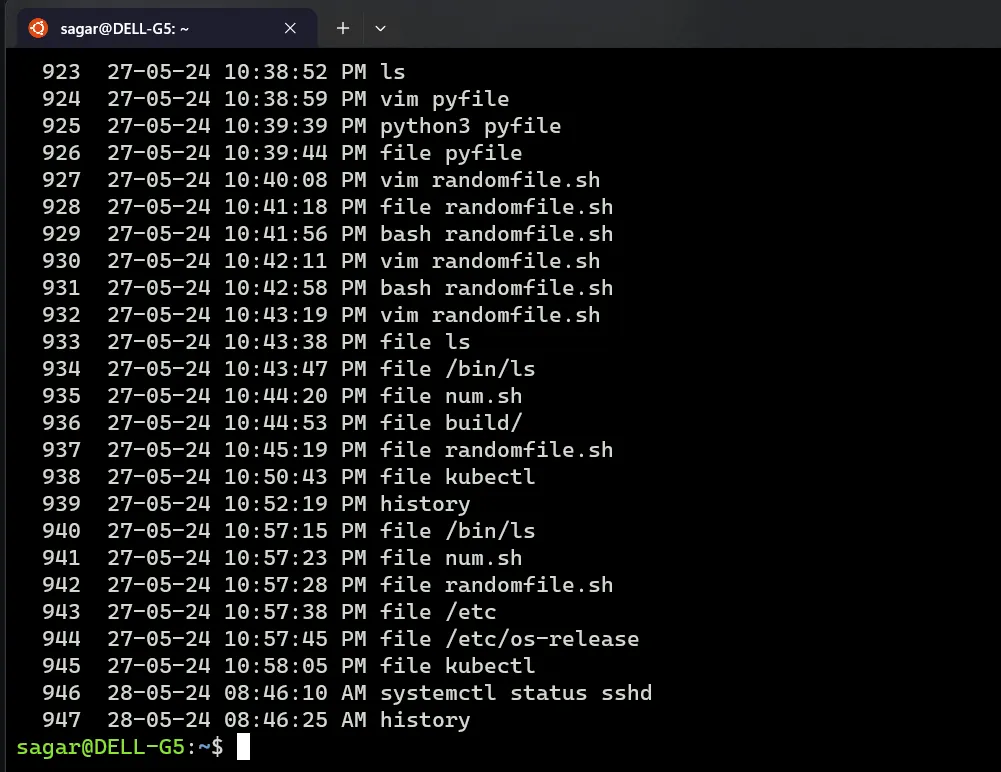
Note: All the dates at this point might show the current date because the date was not recorded, but from now onwards it should be correct.
4. Run Multiple cmds at once:
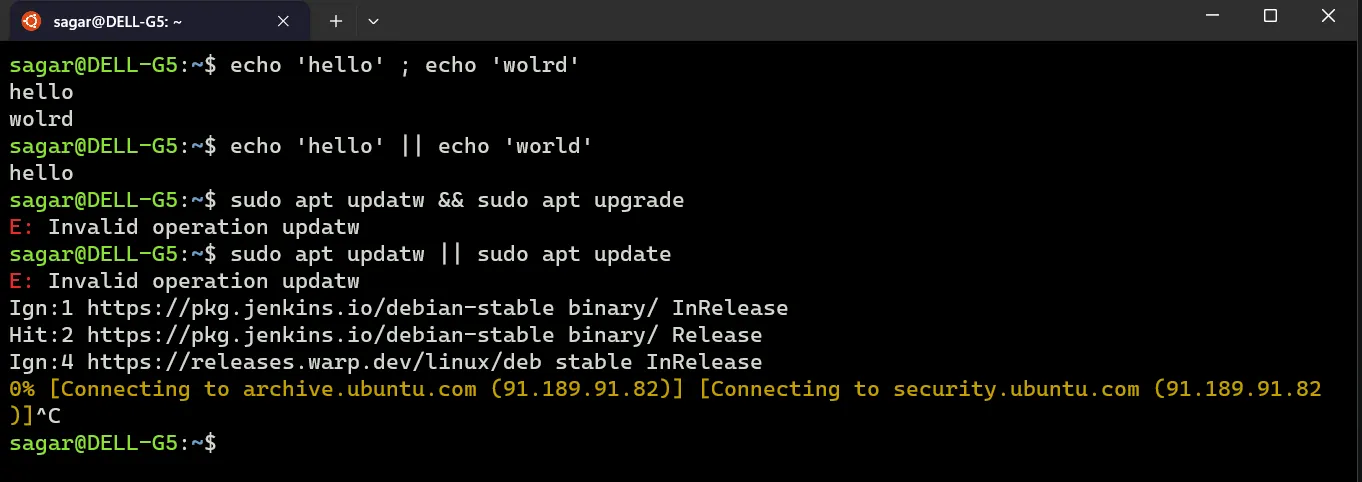
If you want to run multiple commands at once, you can chain then together with with 3 options.
; — Run commands sequentially
&& — If one cmd fails then the next wont run
|| — Command runs only if previous cmd fails.
5. View content with Less :
Viewing a file with large data using “cat” spams the whole window, using less shows a chunk of content and then you can scroll up or down.
Other features include:
- Search: search for specific terms within the file using
/<search term>. - Navigation: G to move to the end of the file,
1G(go to line 1),N(repeat previous search), etc. - Options: various options to customize behavior, such as
-N(display line numbers),-i(ignore case in search),-S(disable text wrapping), etc.
6. Column:
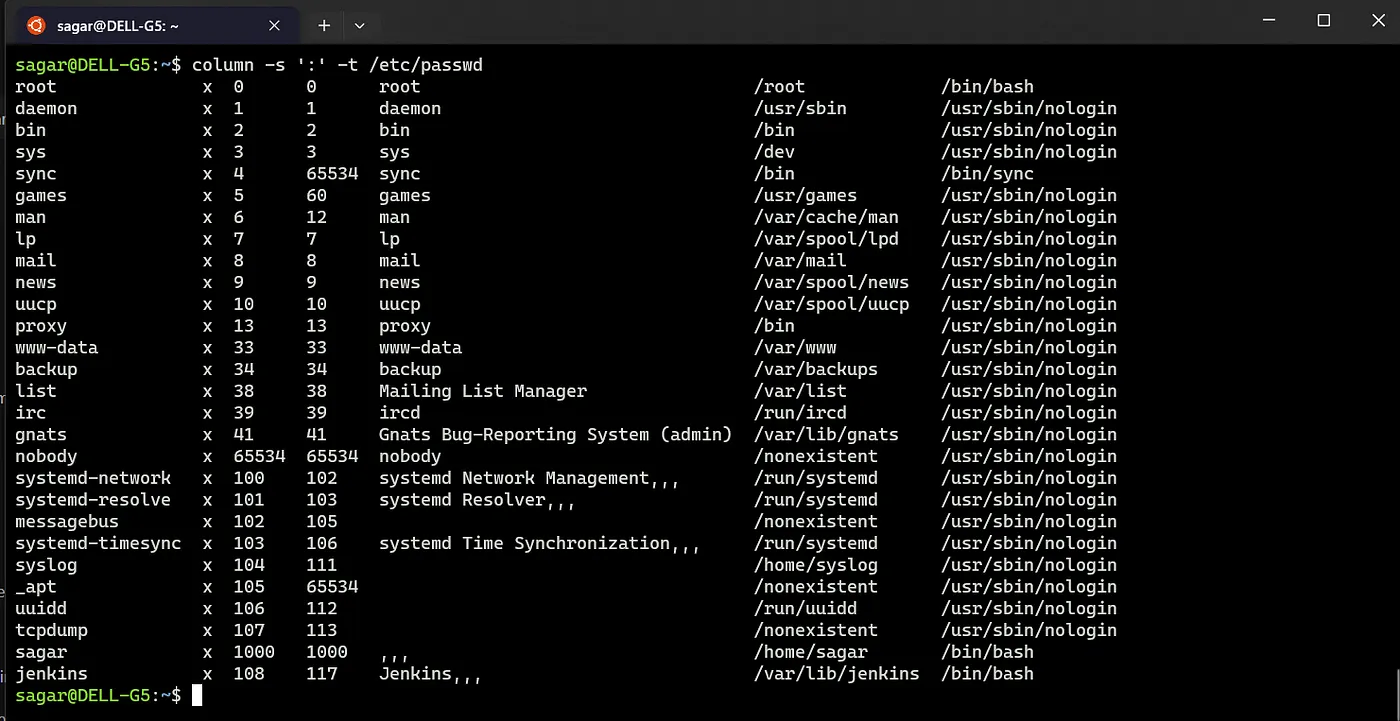
Using the column cmd, view the output of text files or command outputs in more readble format.
use -t to show in tabular format and -s to specify the delimiter. Either run with column command or pipe output of other cmds to column.
column -s ',' -t data.csv #shows tabluar data from the file, separated values
cat /etc/passwd | column -s ':' -t
6. Truncate a file
Remove the content of a file without opening it with truncate. Specify the size with -s (–size). 0 is to empty it or any other number to reduce to that size.
truncate -s 0 filename.txt -- removes all data
truncate -s 100 filename.txt

7. Head and Tail:
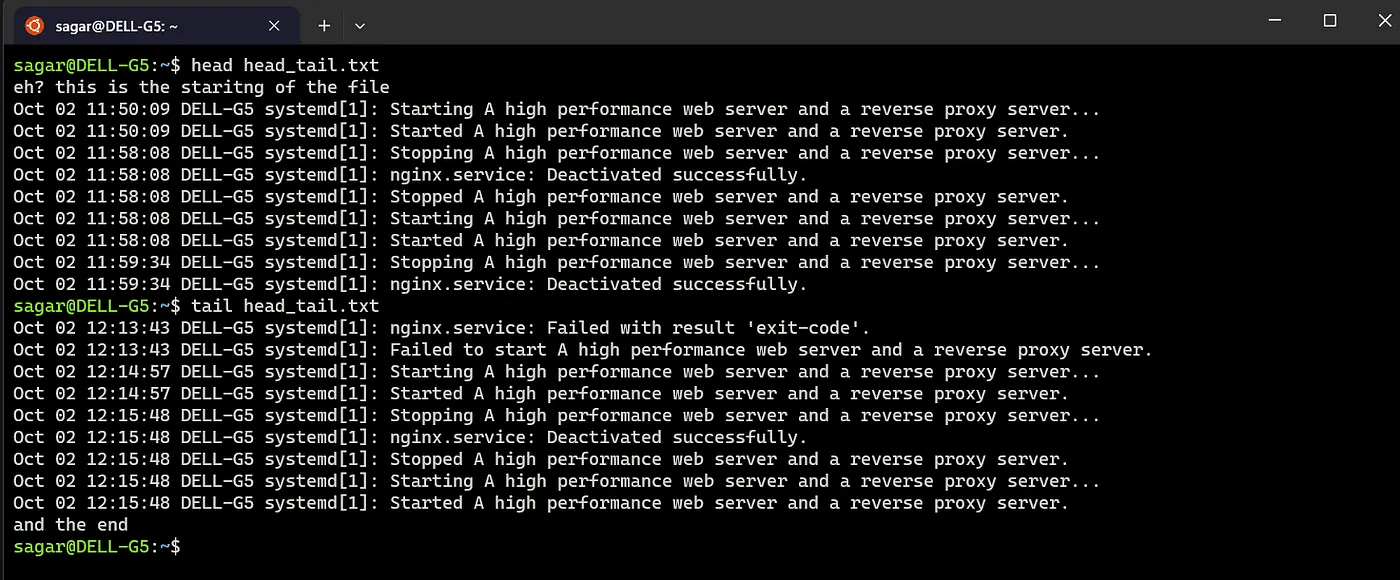
As the name suggests, the head shows few lines of a file and the tail shows the last few lines.
You can also specify the number of lines to be displayed.
head/tail -n 20 <file>
Tail with -f is also helpful to view changing files like logs.
tail -f <file>
8. View exit code:
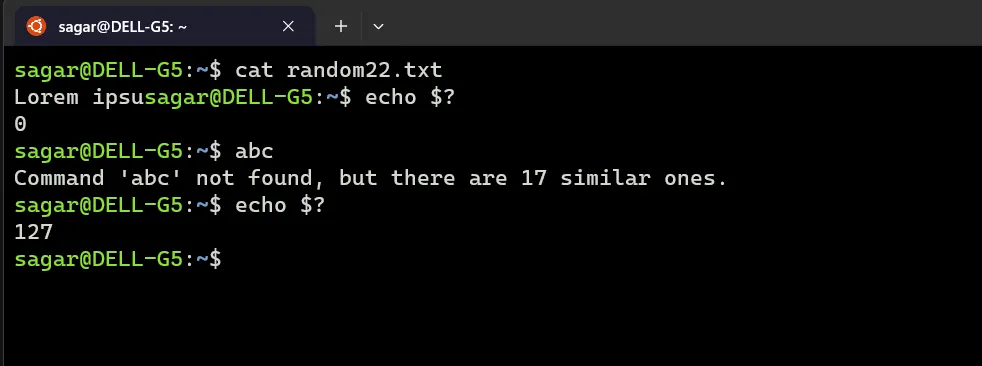
Exit codes show the results of execution, typically useful for shell script. Use “echo $?” to view the exit code of previous cmd.
9. Create nested directories:
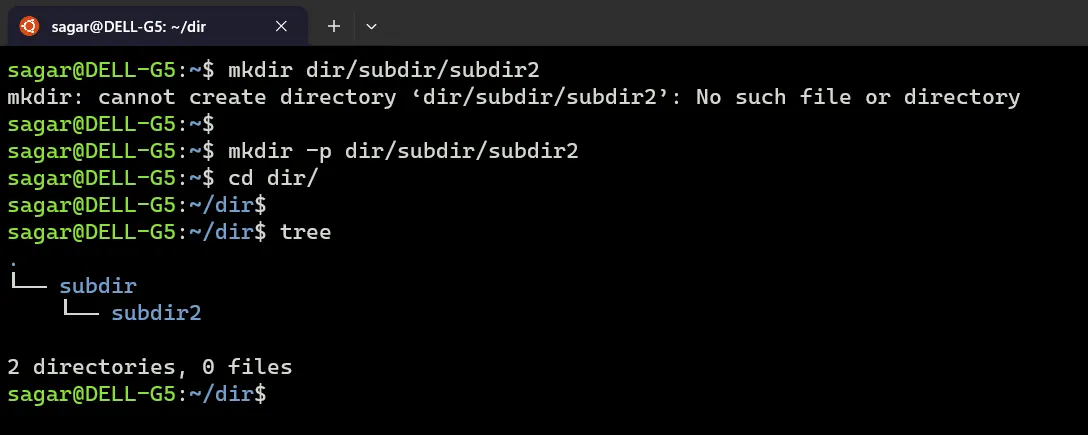
If you need to create nested director use / to define the sub dirs.
mkdir -p dir/{dir1/subdir1,dir2,dir3/subdir3}
10. File command:
Use file command to check the type of any file. Especially useful to determine files without extension or files disguised as a diff file.
eg : a .sh file with python interpreter on #!

That’s all for today.
Read part 1: here