

Preface
In the previous article, we covered the core observability concepts theoretically. The next step is exploring them practically using the OpenTelemetry Demo application.
The goal here is not to memorize PromQL syntax, but to understand how telemetry actually appears inside a real observability platform. So, let’s get started.
Cloning the Repository
The OpenTelemetry Demo repository already contains a complete observability stack including:
- OpenTelemetry Collector
- Prometheus
- Jaeger
- OpenSearch
- Grafana
Clone the repository:
git clone https://github.com/open-telemetry/opentelemetry-demo.git

cd opentelemetry-demoStarting the Observability Stack
The demo ships with multiple Docker Compose files. Start the stack by ruuning it using these 2 main compose files:
docker compose -f compose.yaml -f compose.observability.yaml up -dThis starts:
- frontend application
- OpenTelemetry Collector
- Prometheus
- Jaeger
- OpenSearch
- Grafana
Verify containers:
docker psExpected containers include:
frontend-proxy
otel-collector
prometheus
jaeger
opensearch
grafana

and more container of the demo applicationUnderstanding the Architecture
Telemetry flow in the demo looks like:
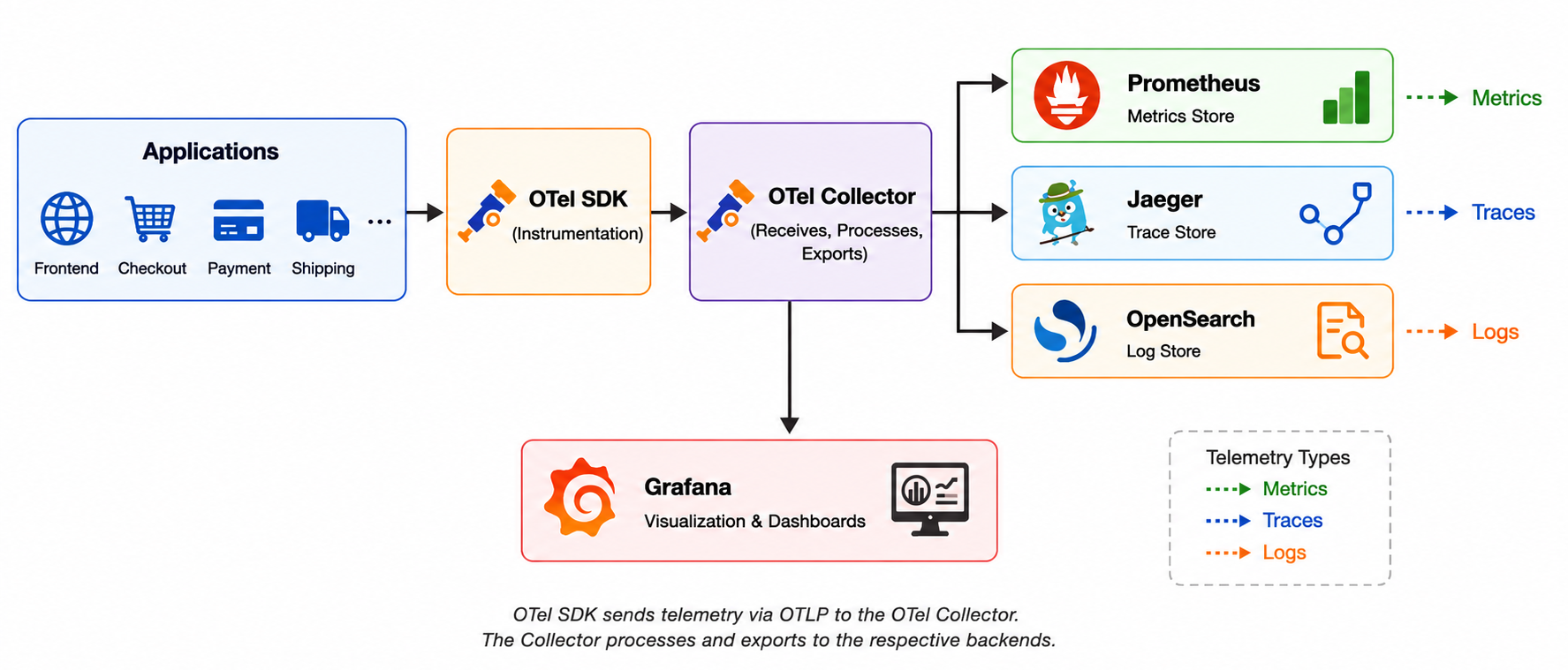
The OpenTelemetry Collector acts as the central telemetry pipeline. Applications send telemetry using OTLP. The Collector processes telemetry and exports it to different backends.
Exploring the Docker Compose File
The main observability infrastructure is defined in compose.observability.yaml
This file defines:
- Prometheus
- Jaeger
- OpenSearch
- Grafana
- OTel Collector
along with:
- ports
- mounted configs
- startup commands
- networking
This is essentially the infrastructure wiring for the observability stack.
Understanding the Collector Configuration
The OpenTelemetry Collector is a vendor-neutral telemetry pipeline that receives, processes, and exports telemetry data. In this demo, the Collector acts as the central hub between the application and the observability backends.
Common alternatives include:
- Grafana Alloy
- Fluent Bit
- Fluentd
- Vector
The telemetry pipeline itself is defined inside src/otel-collector/otelcol-config.yml
This file contains:
receivers:
processors:
exporters:
service:The Collector:
- receives telemetry
- processes telemetry
- exports telemetry
The demo loads multiple collector configs together using multiple --config arguments from Docker Compose.
One important component inside the Collector configuration is:
connectors:
span_metrics:This converts traces/spans into Prometheus metrics. That is why Prometheus later exposes metrics such as:
traces_span_metrics_calls_totalThese metrics are generated from spans.
Understanding the Prometheus Configuration
The demo also includes /etc/prometheus/prometheus-config.yaml
This is different from traditional Prometheus scraping setups.
Instead of primarily scraping /metrics endpoints, Prometheus in this setup is integrated with OpenTelemetry telemetry pipelines.
Important section:
otlp:
promote_resource_attributes:This converts OpenTelemetry resource attributes into Prometheus labels.
Example:
service.name → service_nameThis is why metrics later contain labels such as:
service_name
service_version
host_name
status_code
span_kindAccessing the Demo and Observability Tools
Once the stack is running, the OpenTelemetry Demo exposes the storefront and observability tools through a frontend proxy running on port 8080.
Rather than listing every endpoint here, refer to the official documentation screenshot below, which shows the currently available URLs for the demo application, Grafana, Jaeger, the load generator, and other supporting tools.
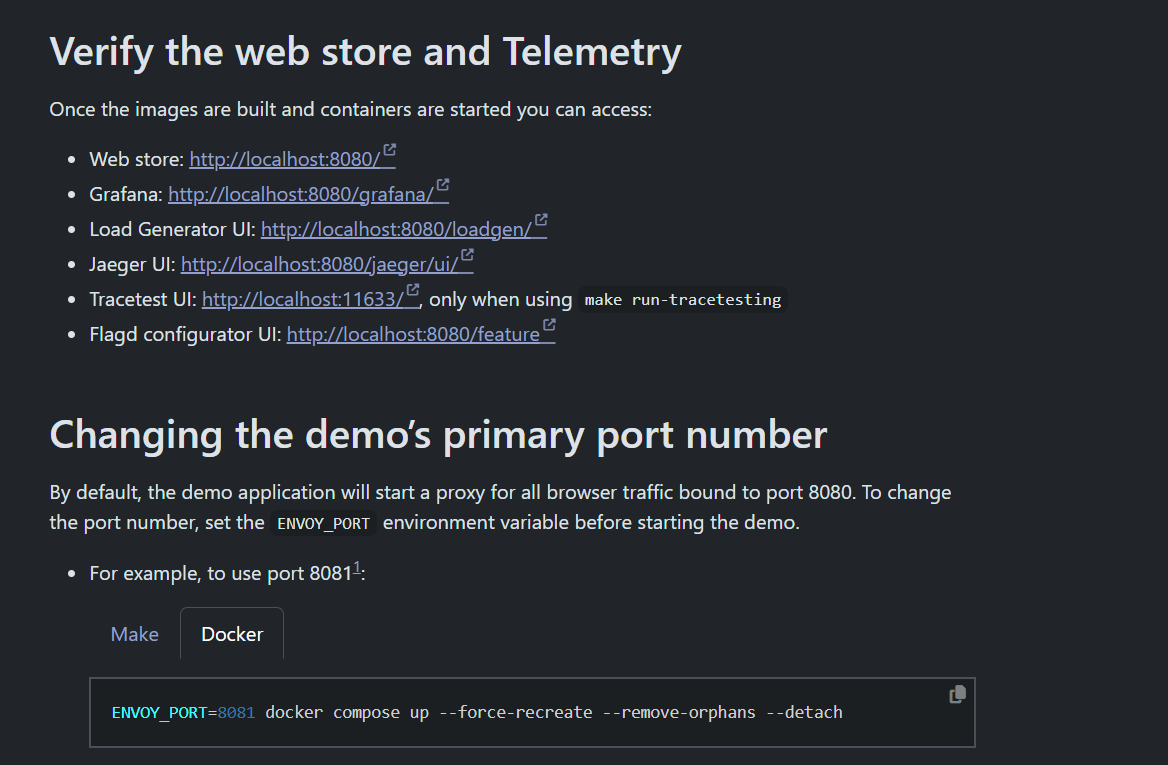
The OpenTelemetry Demo documentation also explains how the proxy routes requests and how to change the default port if required.
Open the demo application at ‘http://localhost:8080’ and generate telemetry by:
- browsing products
- refreshing pages
- adding items to cart
- checking out
Without traffic, metrics, traces, and logs will remain mostly empty.
The demo also includes a load generator service that continuously produces traffic. However, I usually stop the load-generator container while learning a new observability tool. Exploring the application manually generates smaller and more meaningful request flows, making it easier to understand metrics, traces, and service interactions without the noise of constant background traffic.
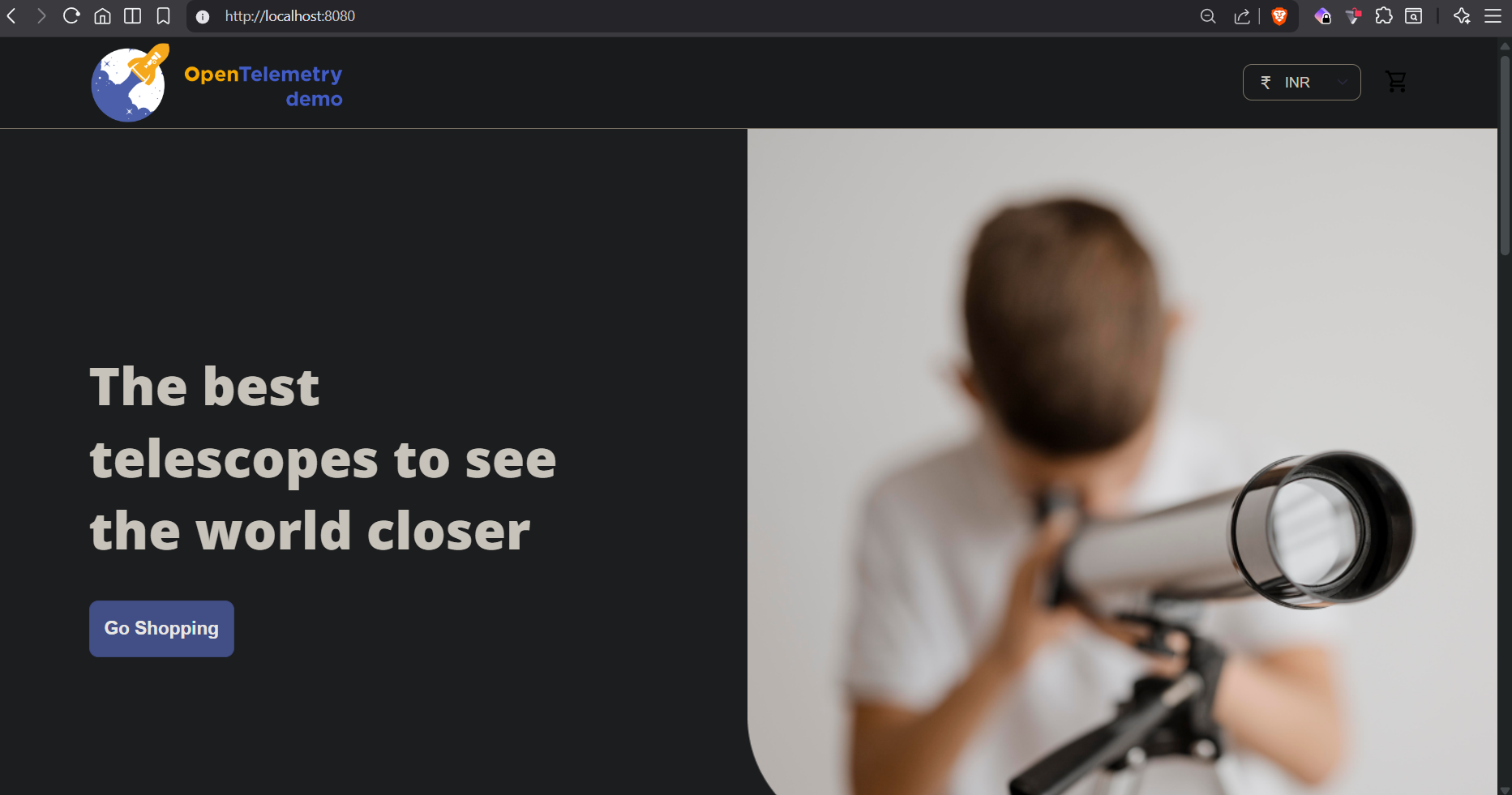
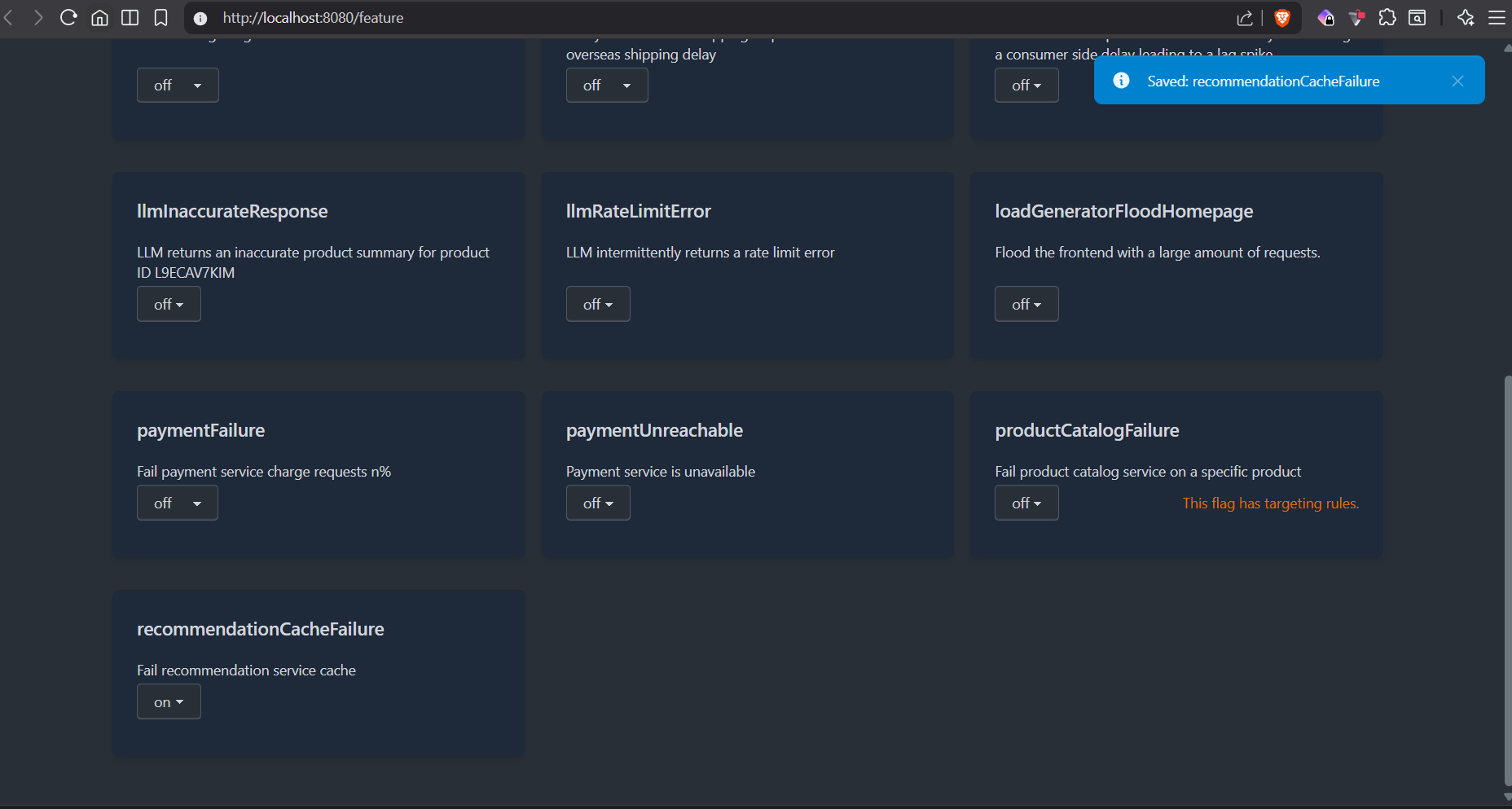
Note: The Demo includes a feature flag management interface powered by Flagd.
The UI is available through the frontend proxy and allows various behaviors to be enabled or disabled without modifying application code.
Prometheus
Prometheus is an open-source time-series database and monitoring system.
It stores metrics, executes PromQL queries, and powers alerting and dashboards.
Common alternatives include:
- VictoriaMetrics
- InfluxDB
- Datadog Metrics
- New Relic
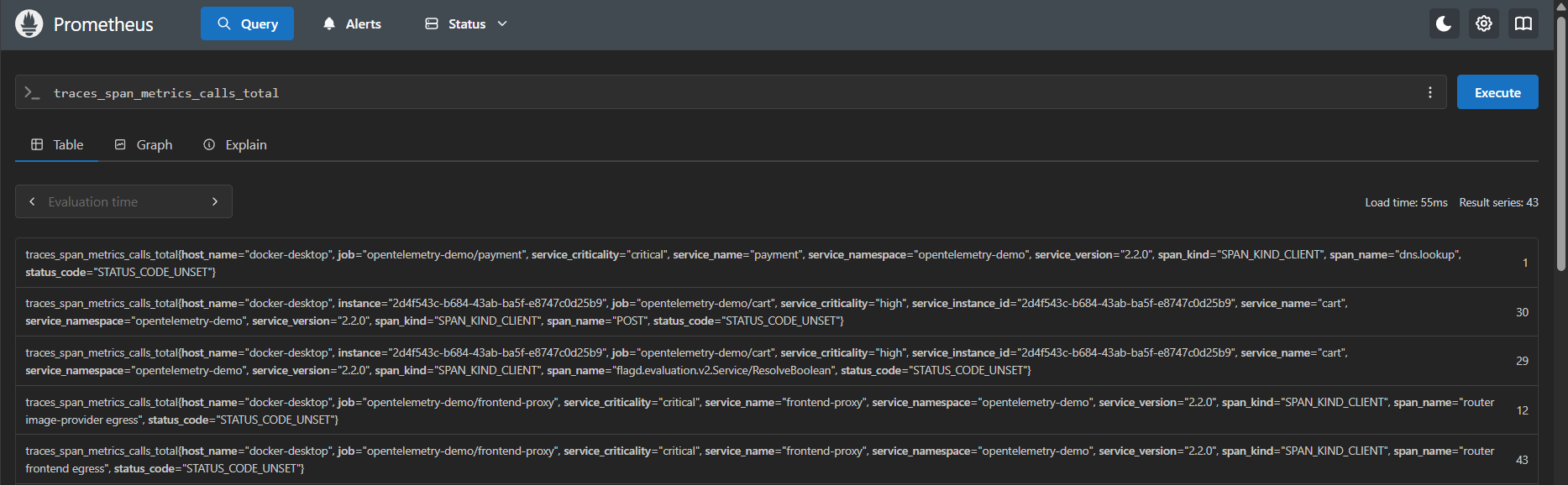
Prometheus is available at ‘http://localhost:9090’. Try this query first: traces_span_metrics_calls_total
Understanding a Prometheus Metric
Example output:
traces_span_metrics_calls_total{
  service_name="recommendation",
  span_kind="SPAN_KIND_CLIENT",
  span_name="flagd.evaluation.v1.Service/ResolveBoolean"
}Prometheus metrics consist of:
metric_name{labels}Metric name:
traces_span_metrics_calls_totalLabels:
service_name, span_kind, span_name, status_codeThese labels originate from OpenTelemetry resource attributes and span metadata.
Understanding Span Kinds
Different span kinds appeare:
SPAN_KIND_SERVER, SPAN_KIND_CLIENT, SPAN_KIND_INTERNALMeaning:
SERVER → incoming requests | CLIENT → outgoing dependency calls | INTERNAL → internal service processingThis was the first point where tracing concepts became visible inside Prometheus metrics.
Counters and Rates
The metric: ’traces_span_metrics_calls_total’ is a counter. Counters only increase.
To understand traffic rate, try the query
rate(traces_span_metrics_calls_total[5m])This converts counters into, opeartions per second, which is significantly more useful for observability analysis.
Aggregating by Service
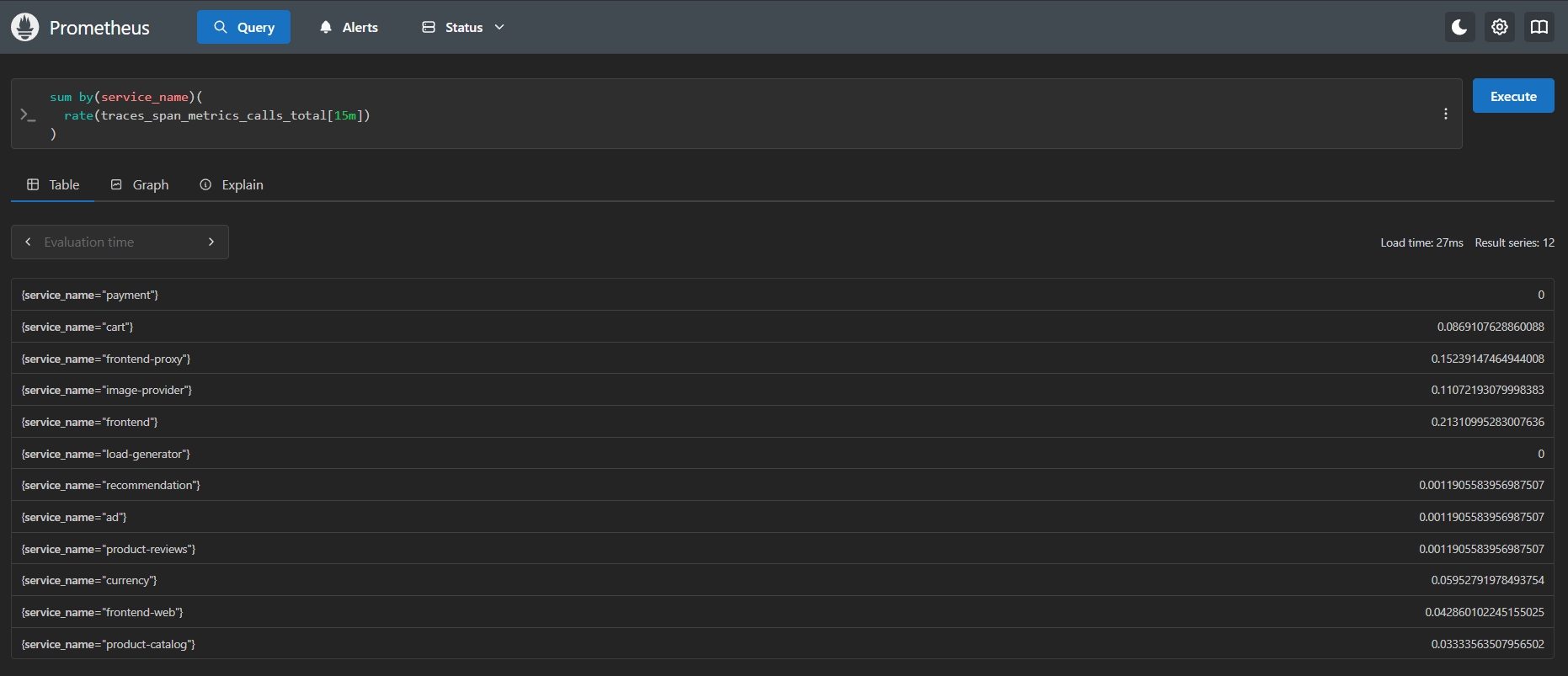
The next query using sum groups telemetry per service. This reduces noisy per-span telemetry into a high-level service traffic view.
Example:
sum by(service_name)(
  rate(traces_span_metrics_calls_total[15m])
)This shows which services were most active.
Histograms and Latency
Latency metrics appear as histogram buckets:
traces_span_metrics_duration_milliseconds_bucketThese metrics introduced the le label:
le = less than or equal toExample:
le="8"means:
Requests completed within 8msHistograms allow Prometheus to calculate percentiles such as:
- p50
- p95
- p99
Calculating p95 Latency
The following query calculates p95 latency per service:
histogram_quantile(
  0.95,
  sum by(le, service_name)(
    rate(
      traces_span_metrics_duration_milliseconds_bucket[5m]
    )
  )
)This reveals slow services such as:
checkout, curreny conversionWith Prometheus we could now see which services are slow but not yet why are they slow? That investigation belongs to tracing systems such as Jaeger.
Filtering Errors
Error rates can be explored using:
sum by(service_name)(
  rate(
    traces_span_metrics_calls_total{
      status_code="STATUS_CODE_ERROR"
    }[5m]
  )
)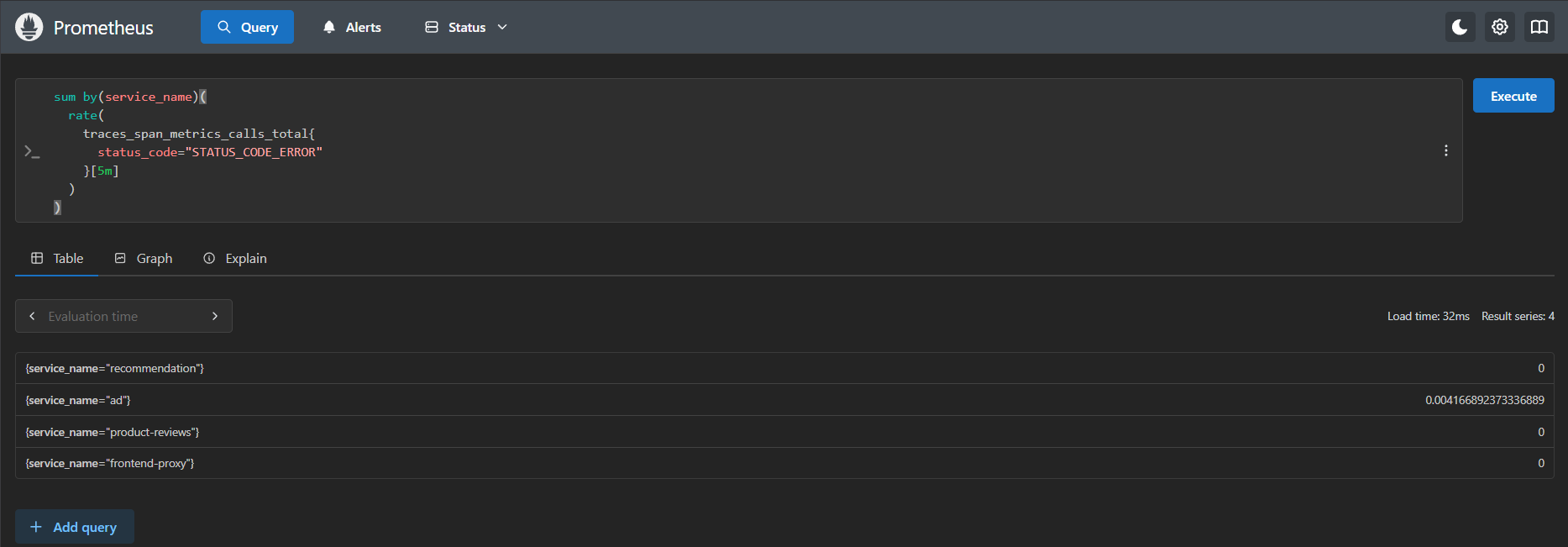
This showes which services were actively generating errors.
Prometheus time series may still appear with value 0 because the time series exists historically even if no recent errors occurred.
Filtering Individual Services
Specific services can be isolated using label selectors:
sum by(span_kind)(
  rate(
    traces_span_metrics_calls_total{
      service_name="frontend"
    }[5m]
  )
)This shows how the frontend service behaved internally:
- receiving requests
- making dependency calls
- performing internal processing
Key Observations
Prometheus metrics are:
- time-series data
- identified by labels
- aggregated using PromQL
The OpenTelemetry demo also demonstrates an important modern observability concept:
Metrics generated from tracesusing the span_metrics connector inside the OpenTelemetry Collector.
By the end of the Prometheus exploration, the following concepts become much clearer practically:
- metrics
- labels
- counters
- rates
- histograms
- percentiles
- filtering
- aggregation
- service-level telemetry
- span-derived metrics
The next step is understanding traces visually using Jaeger.
Jaeger
Jaeger is a distributed tracing platform used to visualize requests as they travel across multiple services.
It helps identify latency bottlenecks, understand service dependencies, and troubleshoot request flows.
Common alternatives include:
- Grafana Tempo
- Zipkin
- Elastic APM
- Datadog APM
- New Relic Distributed Tracing
The OpenTelemetry demo also exposes Jaeger through the frontend proxy, “http://localhost:8080/jaeger/ui/”
Exploring Distributed Tracing with Jaeger
Prometheus successfully answered questions such as: Which services are slow? Which services are generating errors? Which services receive the most traffic? However, metrics alone could not explain: Why is checkout slow? Which dependency caused the delay? What exactly happened during a request?
This is where distributed tracing becomes useful. Metrics summarize behavior, Traces explain behavior.
Understanding Traces and Spans
A trace represents the complete journey of a request through a distributed system.
Example:
User Checkout Request
        ↓
Frontend
        ↓
Checkout
        ↓
Cart
        ↓
Product Catalog
        ↓
Currency
        ↓
Payment
        ↓
EmailEverything that happens for this request belongs to a single trace. Each individual operation inside that trace is called a span.
Example:
Trace
 ├── Frontend Span
 ├── Checkout Span
 ├── Cart Span
 ├── Product Catalog Span
 ├── Currency Span
 ├── Payment Span
└── Email SpanA trace is therefore a collection of spans.
After generating traffic by browsing products and placing orders, traces will be immediately available inside the Jaeger search interface.
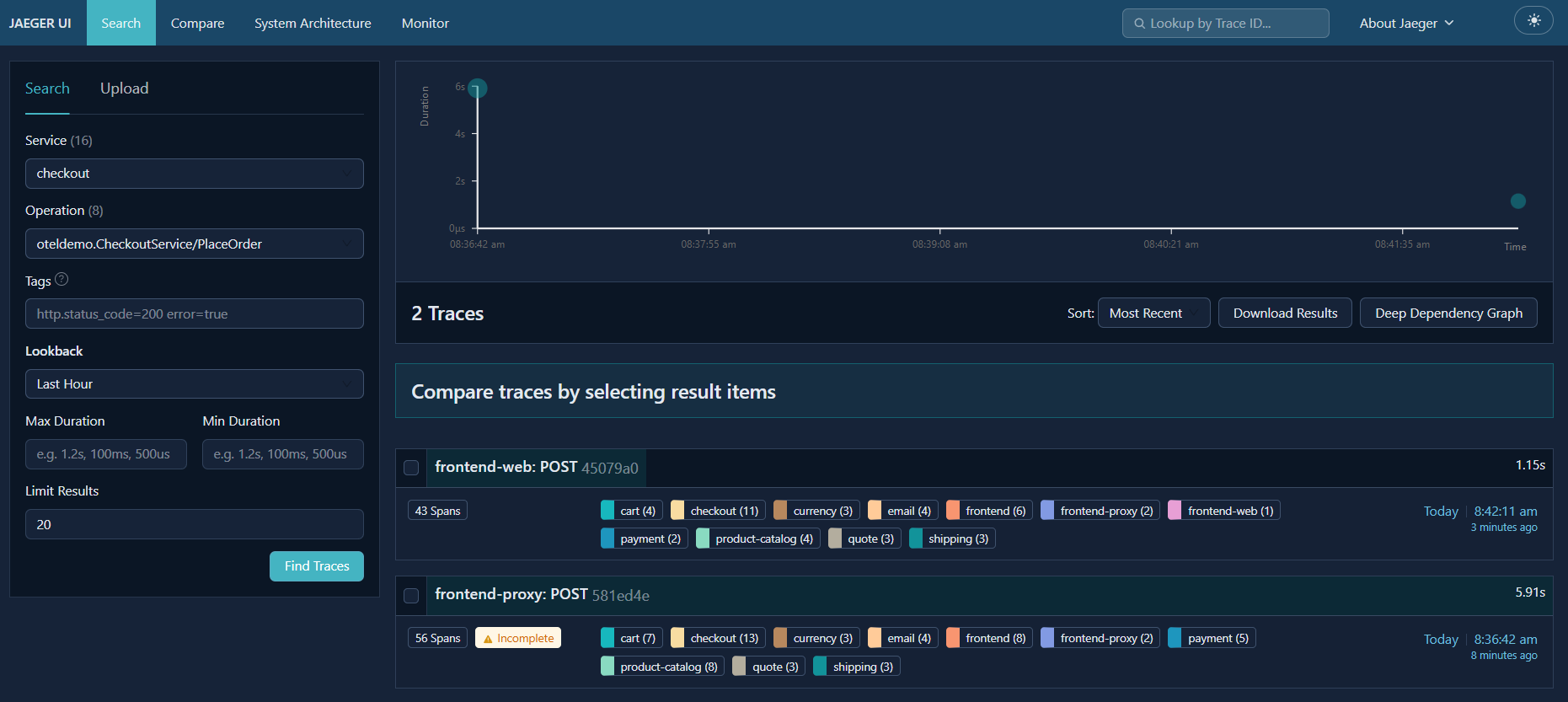
Searching for the checkout service quickly reveals complete order execution flows.
Reading a Trace Timeline
To explore tracing in practice, start by selecting a checkout trace from the search results.
For example:
Service: checkout
Operation: PlaceOrderOpen one of the traces to view its execution timeline.
Each horizontal bar represents a span. The width of the bar represents duration.
The nesting of spans represents relationships between operations.
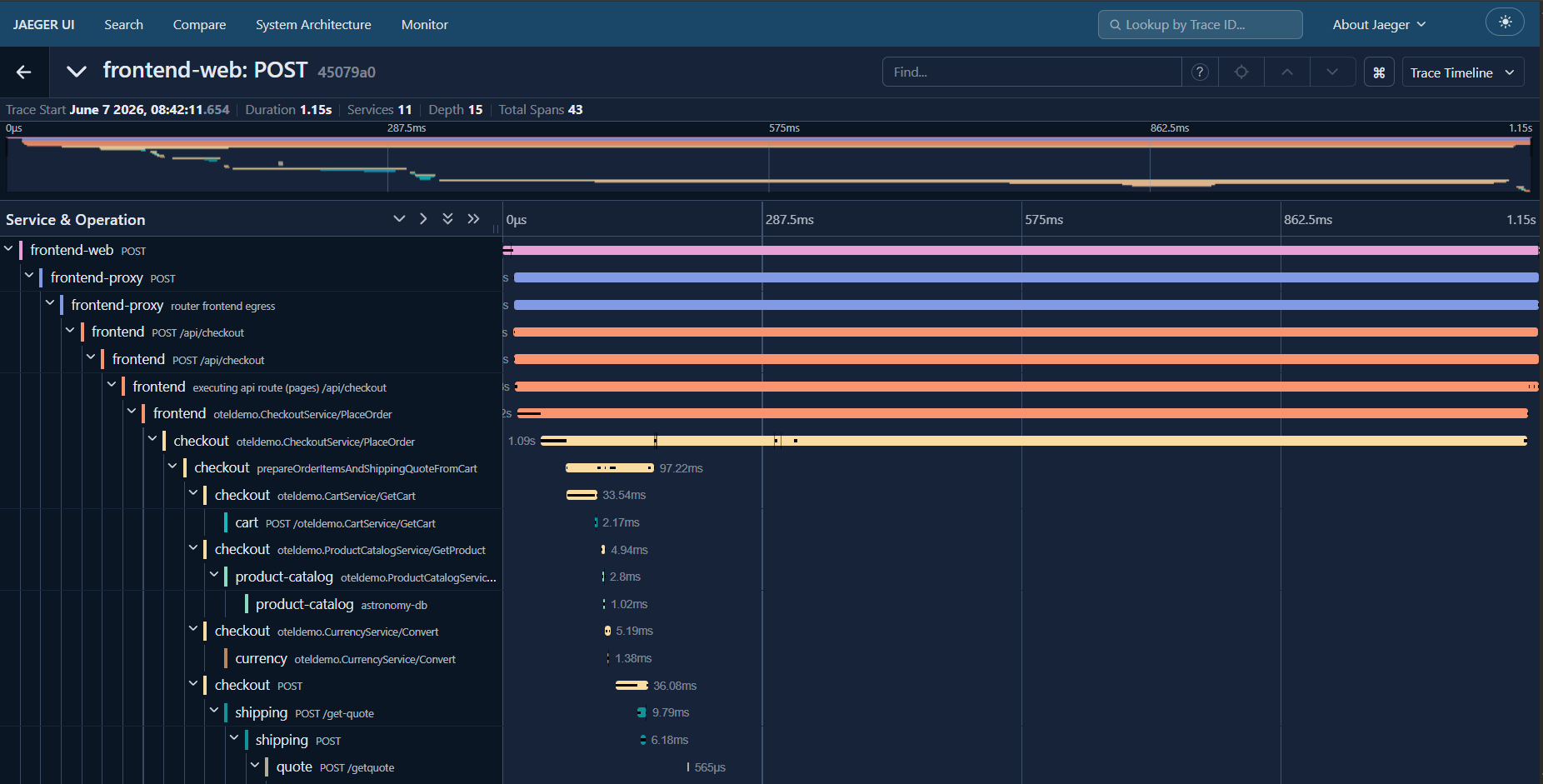
The timeline effectively becomes a visual execution diagram of the request.
Instead of reading logs line by line, the entire request flow becomes visible immediately.
Parent and Child Spans
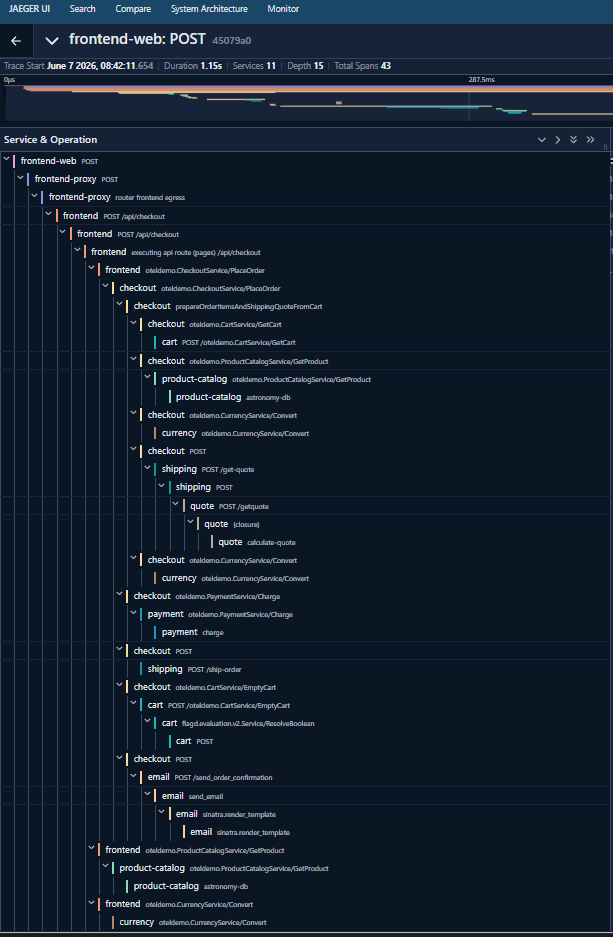
Expanding the checkout trace reveals a hierarchy of spans.
For example:
CheckoutService/PlaceOrderacts as a parent span.
Inside it are child spans such as:
GetCart

GetProduct

ConvertCurrency

GetShippingQuote

ChargePayment

SendOrderConfirmation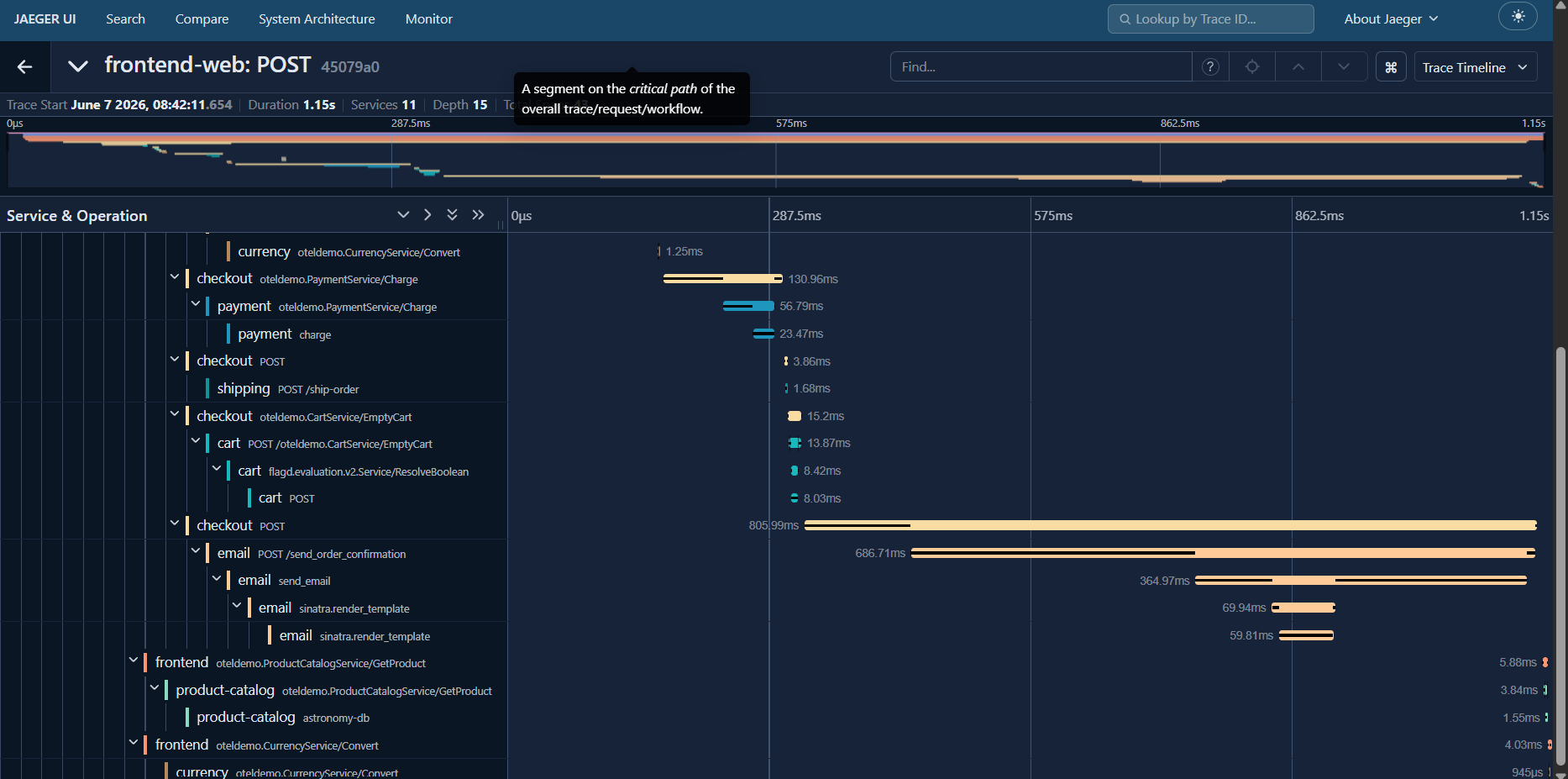
This hierarchy makes it possible to understand which operations belong to a larger workflow.
The checkout service orchestrates multiple downstream dependencies to complete the order.
Understanding Span Kinds
Selecting an individual span reveals additional metadata.
One useful field is:
span.kindCommon values include:
SPAN_KIND_SERVER

SPAN_KIND_CLIENT

SPAN_KIND_INTERNALMeaning:
SERVER
Incoming request handled by a service

CLIENT
Outgoing dependency call

INTERNAL
Internal processing inside a serviceThese values help explain the role each operation plays during request execution.
CLIENT and SERVER Spans
A single service call typically generates two spans.
For example:
Frontend
    ↓
CheckoutThe frontend service generates a CLIENT span because it initiates the request.
The checkout service generates a SERVER span because it receives the request.
Conceptually:
Frontend
  CLIENT → CheckoutService/PlaceOrder

Checkout
SERVER → CheckoutService/PlaceOrderTogether these spans describe both sides of the same network call.
Trace IDs and Span IDs
Every trace contains a unique Trace ID.
Every span contains its own Span ID.
The Trace ID links all spans belonging to the same request.
Span IDs uniquely identify individual operations.
These identifiers become especially useful later when correlating traces with logs.
Investigating Slow Requests
One checkout trace may show a total duration of approximately:
1.2 secondsAt first glance, this makes the checkout operation appear slow.
However, expanding the trace reveals how the time is distributed across downstream operations.
For example:
- cart retrieval
- product lookup
- currency conversion
- shipping calculation
- payment processing
- email generation
Tracing therefore answers a much more useful question than metrics alone:
Where is the latency occurring?Service Dependencies Become Visible
The checkout trace also reveals service relationships directly.
For example:
Checkout
    ↓
Cart

Checkout
    ↓
Product Catalog

Checkout
    ↓
Currency

Checkout
    ↓
Payment

Checkout
    ↓
ShippingWithout reading source code, it becomes possible to understand how services interact with one another.
This is particularly useful when exploring unfamiliar systems.
Finding Bottlenecks
A practical tracing workflow is:
Start with the largest span.

Expand child spans.

Identify where time is spent.

Continue drilling down until the slow dependency is found.Metrics identify that a problem exists.
Tracing identifies where the problem exists.
OpenSearch
OpenSearch is used as the log storage backend.
Responsibilities:
stores application logs indexes log data supports searching and filtering
Common alternatives:
Elasticsearch Loki
Exploring Logs with OpenSearch
In the OpenTelemetry Demo, logs are exported through the OpenTelemetry Collector and stored inside OpenSearch indices.
The architecture looks like:
Application
    ↓
OTel SDK
    ↓
OTel Collector
    ↓
OpenSearch
    ↓
OpenSearch DashboardsEnabling OpenSearch Dashboards
Unlike Jaeger and Grafana, OpenSearch Dashboards is not enabled by default in the demo.
The dashboard container must first be added to the observability stack (compose.observability.yaml) right after the opensearch section.
  opensearch-dashboards:
    image: opensearchproject/opensearch-dashboards:latest
    container_name: opensearch-dashboards
    restart: unless-stopped
    ports:
      - "5601:5601"
    environment:
      - OPENSEARCH_HOSTS=["http://opensearch:9200"]
      - DISABLE_SECURITY_DASHBOARDS_PLUGIN=true <-- This disbales login

    depends_on:
      opensearch:
condition: service_healthyAfter restarting the observability stack, OpenSearch Dashboards shoul available at ‘http://localhost:5601’
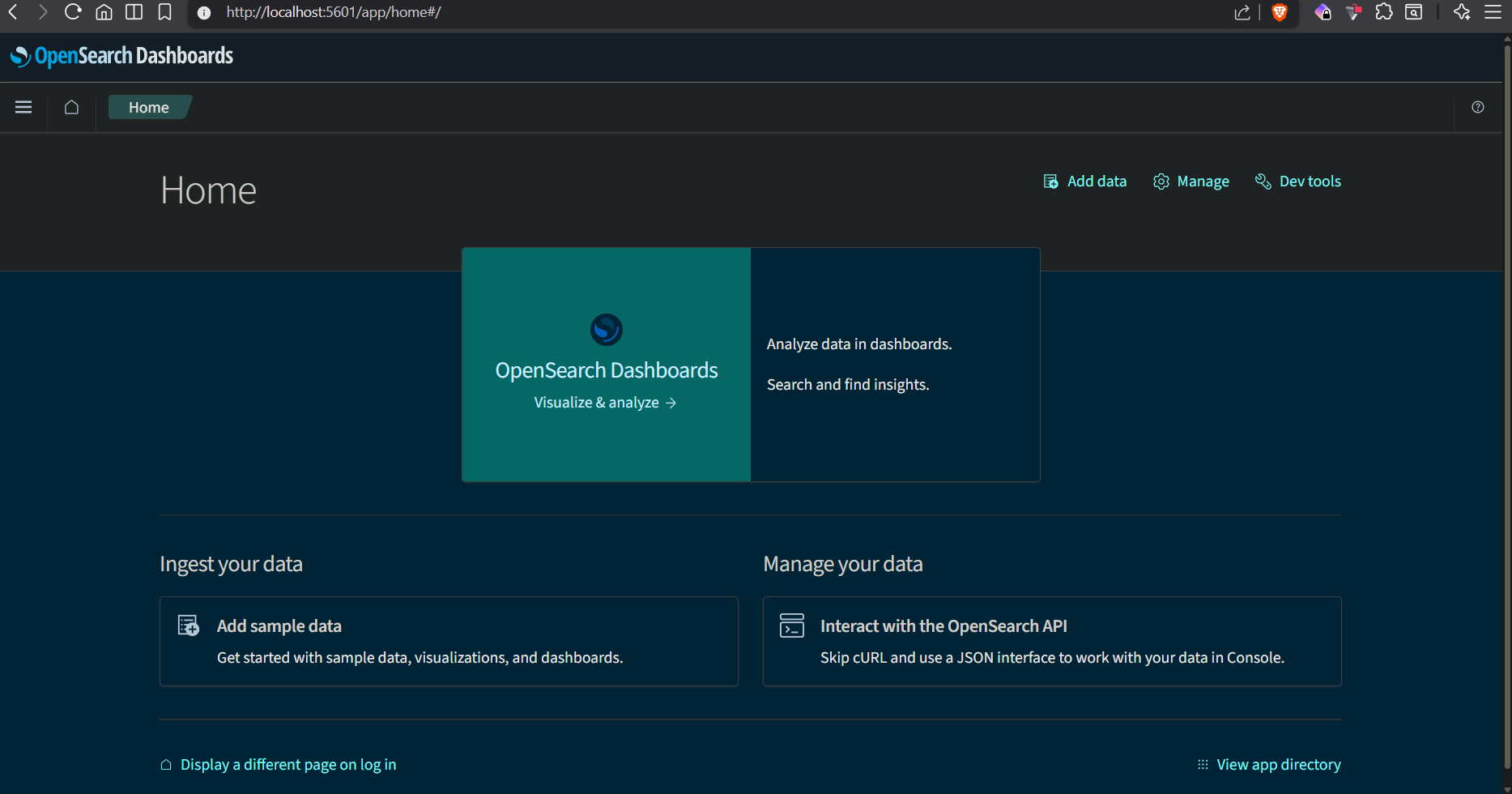
Unlike Jaeger, OpenSearch initially contains raw indices and documents rather than traces or dashboards.
The first step is creating a data view.
Creating a Data View
Open Manage menu and then index pattern and click on Create index pattern.
Serach for otel-logs-*and select @timestamp as the time field.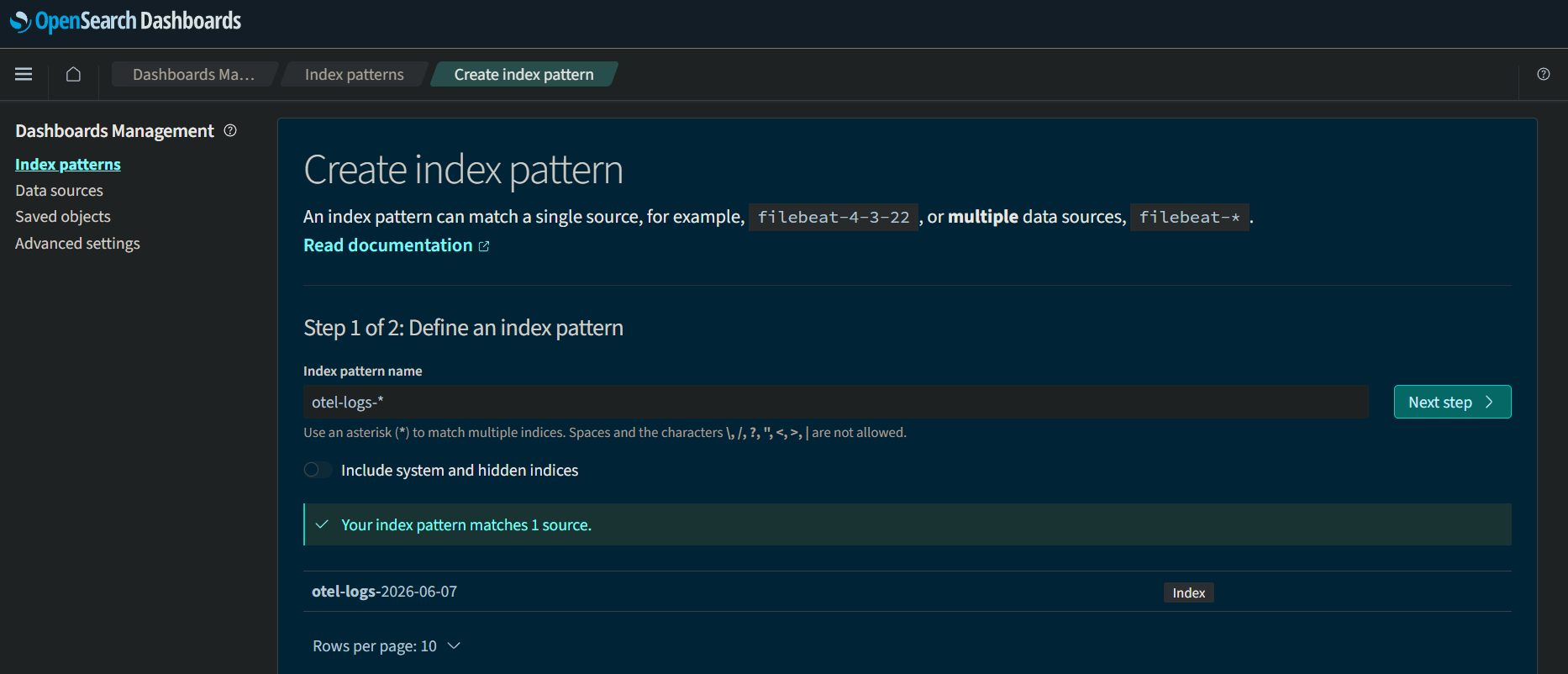
This tells OpenSearch Dashboards which indices should be searched when exploring logs.
Discovering Logs
After creating the data view, open Discover and select: otel-logs-*
The interface displays:
- a log volume histogram
- searchable log documents
- timestamps
- indexed fields
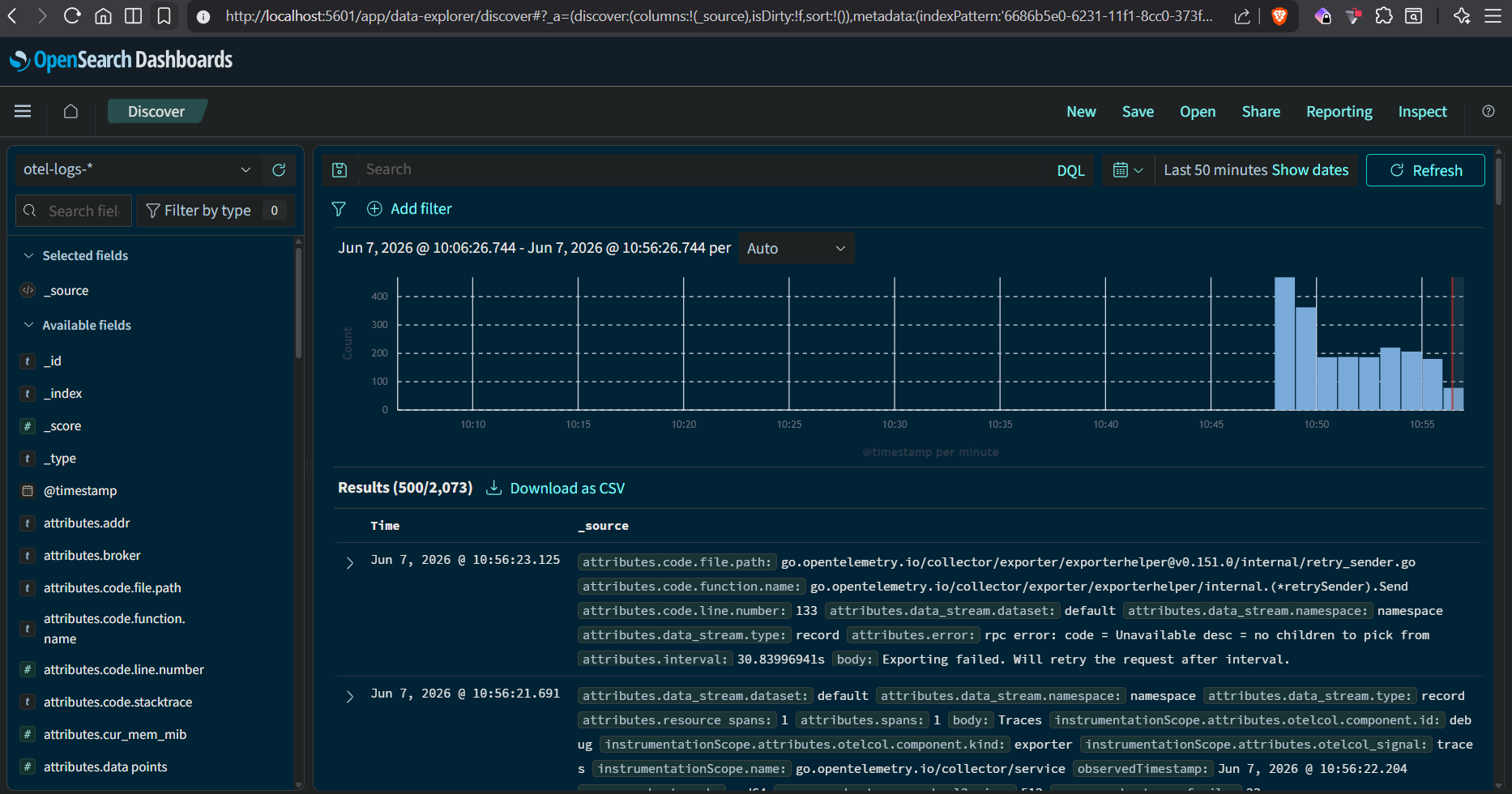
Each row represents a single log document stored in OpenSearch.
Unlike traces, which show request flow, logs represent individual events generated by services.
Understanding a Log Document
Expanding a document reveals the fields captured by OpenTelemetry.
Example:
resource.service.name
body
severity.text
severity.number
traceId
spanId
@timestampMeaning:
resource.service.name → service generating the log

body → log message

severity.text → INFO, WARN, ERROR

traceId → request identifier

spanId → operation identifier

@timestamp → event timeThis makes it possible to identify:
- who generated the log
- what happened
- when it happened
- which request generated it
Filtering Logs by Service
Logs can be filtered using search queries.
For example:
resource.service.name:checkoutreturns logs generated by the checkout service.
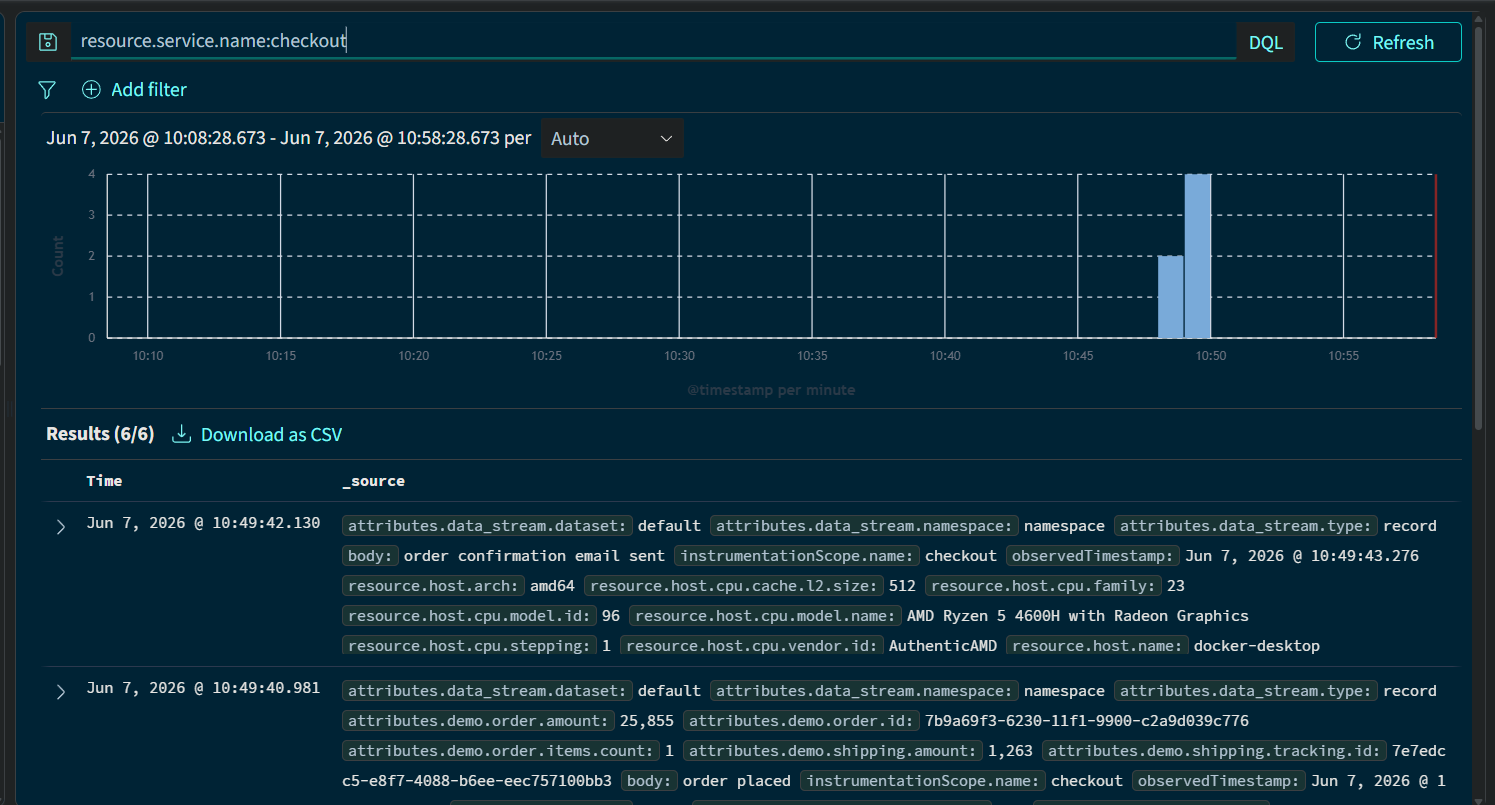
This is similar to filtering Prometheus metrics using labels.
Instead of querying telemetry metrics, OpenSearch is querying log documents.
Correlating Logs with Traces
One of the most useful OpenTelemetry features is trace correlation.
A log document contains:
traceId
spanIdThese values match the identifiers visible inside Jaeger.
Searching for a specific trace ID:
traceId:b0ca45069ad74d8870a4c655f3129612returns all logs generated during that request.
This allows navigation from:
Trace
    ↓
Related Logswhich is one of the core observability workflows.
Exploring Errors
Logs can also be filtered by severity.
Example:
severity.text:ERRORor
severity.text:WARNDuring exploration, one of the logs revealed a collector error:
unable to dial:
lookup kafka on 127.0.0.11:53:
no such hostExpanding the document exposed additional diagnostic information:
attributes.error

attributes.code.file.path

attributes.code.function.name

attributes.code.line.number

attributes.code.stacktrace
This demonstrates one of the biggest strengths of logs.
While traces show where a failure occurs, logs often explain why it occurred.
Key Observations
OpenSearch stores logs as searchable documents.
During exploration we learned how to:
- create a data view
- search indices
- inspect log documents
- filter by service
- filter by severity
- inspect error details
- correlate logs with traces using trace IDs
Together with Prometheus and Jaeger, OpenSearch completes the third pillar of observability:
Metrics → Is there a problem?

Traces → Where is the problem?

Logs → What exactly happened?Grafana
Grafana provides dashboards and visualization capabilities. It helps visualize metrics, logs, and traces, while also enabling the creation of operational dashboards.
Unlike Prometheus, Jaeger, and OpenSearch, Grafana is not a core observability backend. It does not store telemetry itself. Instead, it connects to backends (‘data source’ in grafana terminology) and provides a unified interface for exploring and visualizing telemetry data.
Several alternatives exist in this space, with Kibana from the ELK stack being one of the most widely used.
Exploring Grafana
Unlike Prometheus, Jaeger, and OpenSearch, Grafana is not a telemetry backend. Instead, it acts as a visualization layer on top of multiple observability systems.
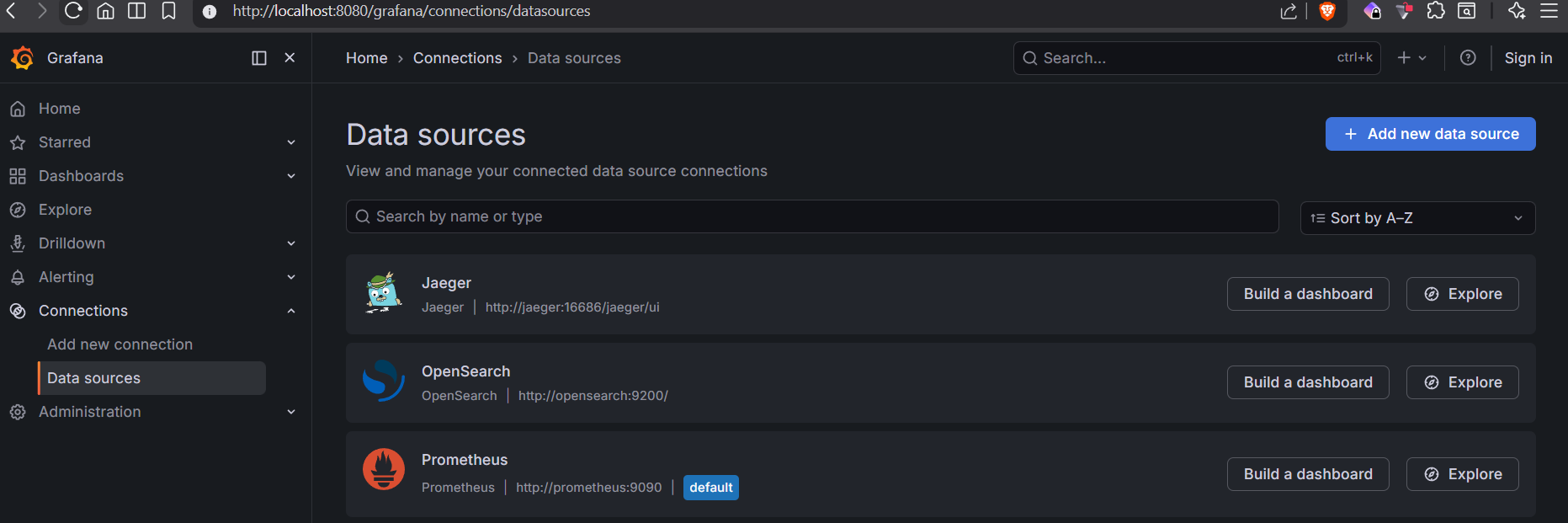
In the OpenTelemetry Demo, Grafana comes preconfigured with multiple data sources including:
- Prometheus for metrics
- Jaeger for traces
- OpenSearch for logs
This allows telemetry from different systems to be viewed from a single interface.
Data Sources
The demo exposes Grafana through the frontend proxy so open it at ‘http://localhost:8080/grafana/’. Now navigate to connections - data source - available data source.
Dashboards
The demo ships with several preconfigured dashboards including:
- APM Dashboard (Jaeger, Prometheus, OpenSearch)
- Spanmetrics Demo Dashboard
- OpenTelemetry Collector Dashboard
One particularly useful dashboard is:
APM Dashboard (Jaeger, Prometheus, OpenSearch)This dashboard combines metrics, traces, and logs into a single operational view. At the top you can view the sources for all the streams and select a service of the app to view its data.
The dashboard visualizes the RED metrics commonly used for service monitoring:
Rate
Errors
Duration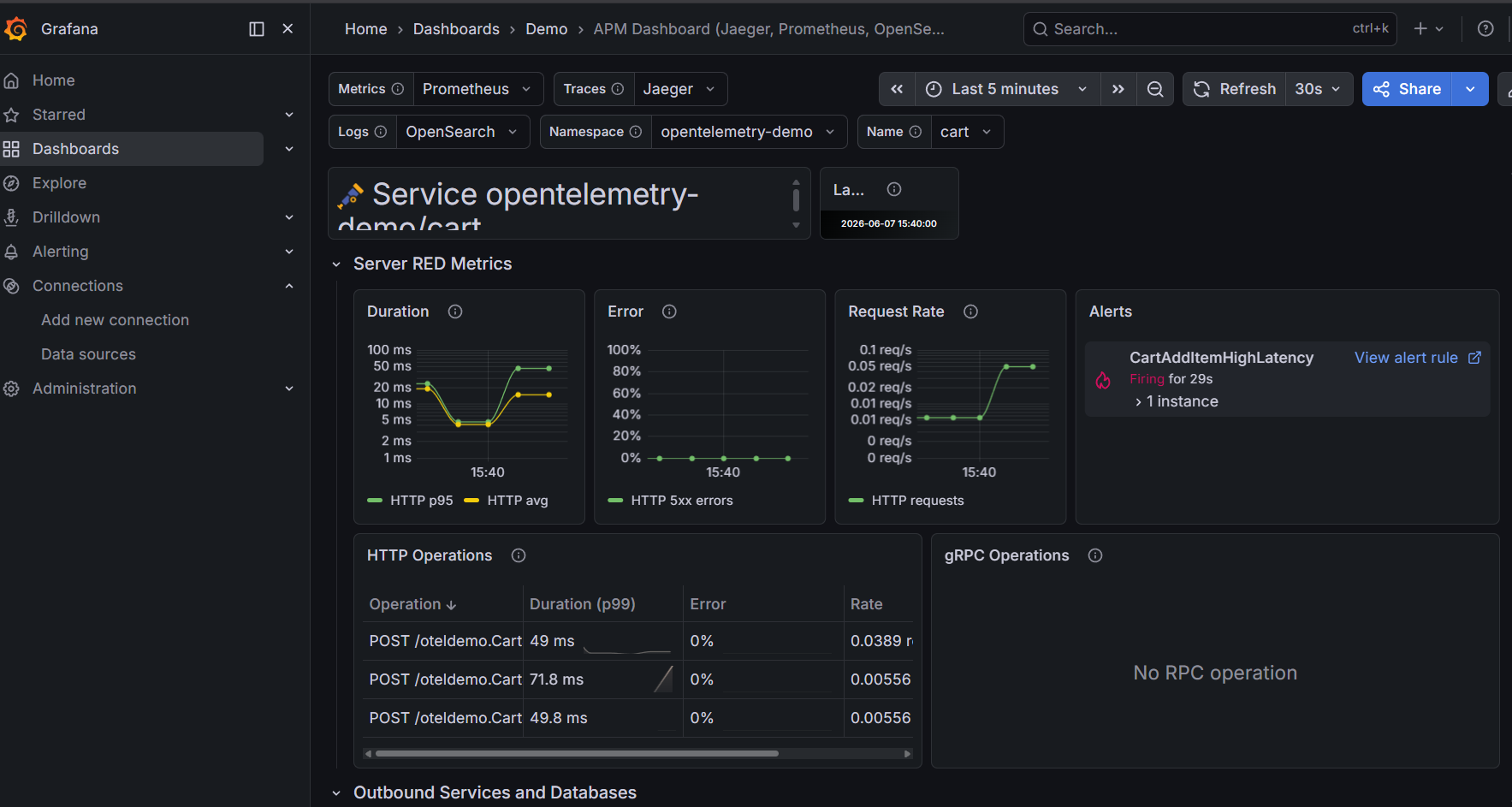
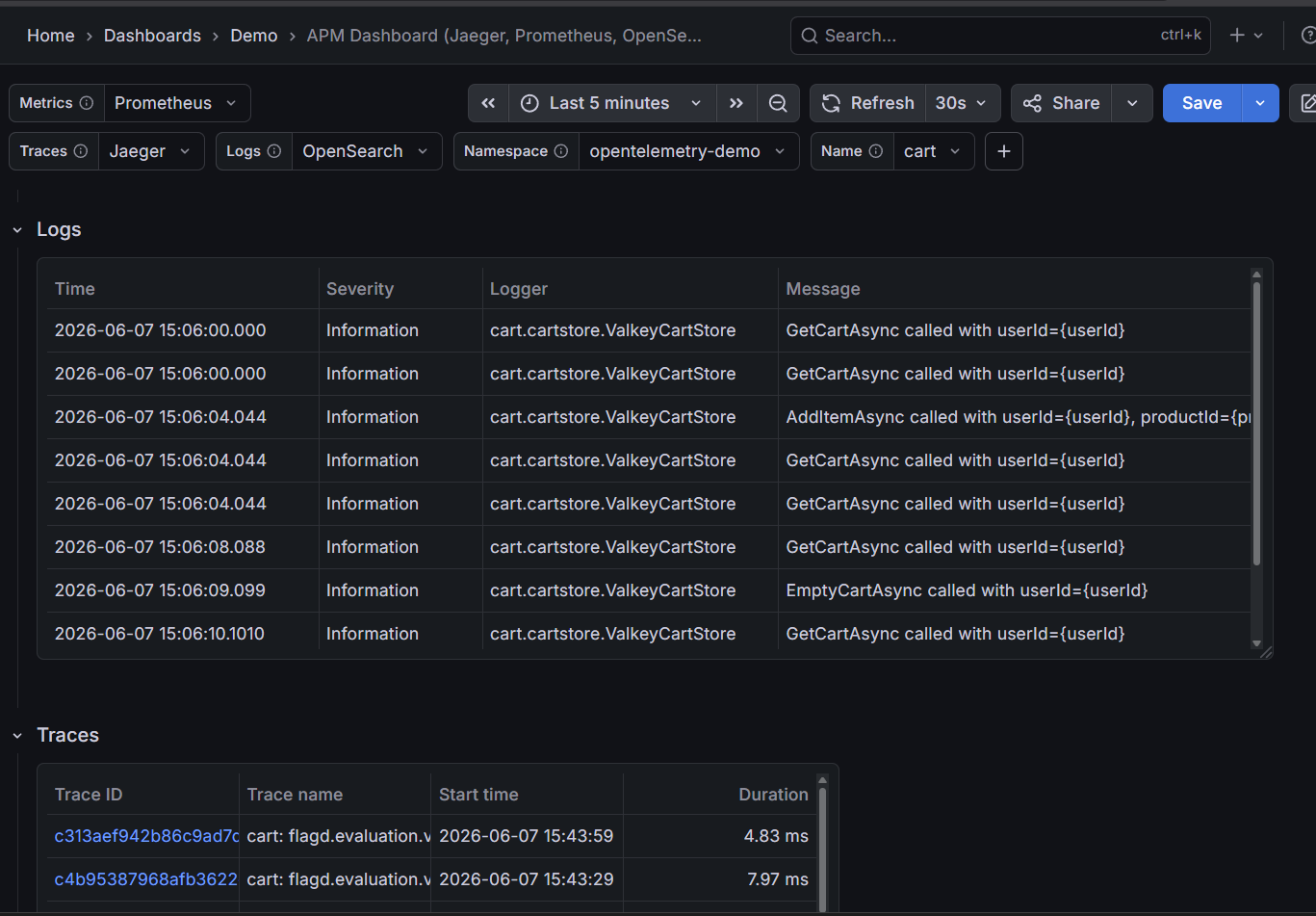
These metrics provide a quick overview of service health and are derived from the same telemetry previously explored directly inside Prometheus.
Grafana does not replace Prometheus, Jaeger, or OpenSearch. Instead, it provides a more user-friendly way to visualize and correlate telemetry across multiple backends.
For learning purposes, exploring the individual tools directly is often more valuable because it helps build a deeper understanding of metrics, traces, and logs. Once those concepts become familiar, Grafana serves as a convenient layer for operational monitoring and dashboarding.
At this point, the complete observability stack becomes much easier to understand:
Prometheus → Metrics

Jaeger → Traces

OpenSearch → Logs

Grafana → Visualization and DashboardsTogether these components provide a practical introduction to modern observability using OpenTelemetry.
Wrapping Up
This article focuses on understanding how telemetry appears inside real observability tools rather than learning every query or dashboard.
The Otel Demo app provides plenty for further exploration. Try enabling failure-related feature flags, introducing latency, or stopping individual containers and then investigate the resulting behavior across the observability stack.
As an exercise, start with a failure and follow it through metrics, traces, and logs. Then explore how the same telemetry appears inside Grafana dashboards.
Another important takeaway is that OpenTelemetry is not tied to Prometheus, Jaeger, OpenSearch, or Grafana. By changing collector and exporter configurations, telemetry can be routed to many different observability backends without modifying application code.
In a future article, we’ll move beyond the demo application and instrument our own application using OpenTelemetry to understand what is required to generate telemetry from scratch.
The more scenarios you experiment with, the easier it becomes to understand how modern observability platforms help diagnose and troubleshoot distributed systems.